
DSL Gateway Quick Start Guide

1.
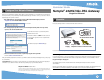
Decide on a location for the Gateway.
Put the Gateway in a location where air can circulate freely around it.
2.
Power the Gateway.
Connect the power supply to the power jack on the back panel of the Gateway. Then, plug the power supply
into an electrical outlet. Turn on the Power switch.
The
Power
LED should light solid green.
3.
Insert the Netopia CD into your CDROM drive.
The Netopia Installation Guide Wizard automates several tasks to get you up and running easily. Run the
Wizard on every Windows-based PC that will connect to your network.
The Installation Guide Wizard should start automatically and the Welcome screen should appear to step
through your connection installation(s).
The Installation Guide Wizard lets you choose which type
of Netopia device you are installing, and where you are
installing it. Choose
Install via Ethernet
and click the
Next
button.
Follow the on-screen instructions to make all of your con-
nections.
Be sure to configure each computer connected to your Netopia Gateway to accept a Dynamically-assigned IP
address, commonly referred to as DHCP.
Set up your Gateway
Configure Your PCs for DHCP
2
3
DSL
POWER
OFF
ON
ETHERNET
RESET
LED Behavior
Power
Green when power is on. Red if device malfunctions.
Ethernet
Solid green when connected. Flashes green when there
is activity on the LAN.
DSL
Solid green when Internet connection is established.
Internet
Solid green when Gateway is connected. Flashes green
when transmitting or receiving data on the WAN port.
Power
Ethernet
DSL
Front View
Internet
Telephone/DSL jack
DC Power
Rear View
DSL Port
Ethernet
Port
Power Switch
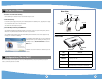
When all of your connections are made, your connections should look like this:
Power outlet
Note: You will need an extra hub or switch if more Ethernet ports are needed.
3
2