
User`s guide


41Location
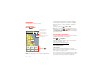
invitations. When using Google Maps, touch Menu
>
Join Latitude
. Read the privacy policy and if you agree
with it, touch
Agree & Share
.
Add & remove friends
Find it: >
Latitude
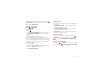
To add friends:
1 Touch .
2 Touch
Select from Contacts
, then touch a contact. Or,
touch
Add via email address
, then enter an email
address.
3 Touch
Yes
to send a sharing request.
If your friends already use Google Latitude, they’ll
receive an email request and a notification. If they have
not yet joined Google Latitude, they’ll receive an email
request that invites them to sign in to Google Latitude
with their Google™ account.
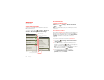
To remove friends:
1 Touch Menu >
Latitude
to show your list of
friends, then touch a friend in your list.
2 Touch
Remove this friend
.
Share location
When you receive a request to share location details you
can choose to:
•
Accept and share back
—See your friend’s location,
and your friend can see yours.
•
Accept, but hide my location
—See your friend's
location, but they can't see yours.
•
Don't accept
—Location information is not shared
between you and your friend.
Hide your location
To hide your location from a friend, touch Menu
>
Latitude
to show your list of friends. Touch a friend on
the list, then touch
Sharing options
>
Hide from this
friend
.
Turn off Google Latitude
Touch Menu >
Latitude
to show your list of friends,
then touch Menu >
Settings
>
Sign out of Latitude
.