
User`s guide







22 Text entry
Swype™ text entry
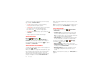
Enter words with one continuous motion. Just drag your
finger over the letters in the word.
Tips:
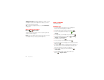
• To enter apostrophes in common words (like “I’ll”),
drag through the
n
as though it was an apostrophe.
• To enter other punctuation, numbers, or symbols,
touch Symbols .
• To correct a word, double-tap it. Swype shows a small
menu of other word options. Swype might also show
a menu if it can’t guess your word.
• If Swype doesn’t know a word, you can still touch the
letter keys to enter it. Swype remembers, so next
time you can just drag over the letters.
Done
Anne
asdf ghj k l
z
xc
v
bnm
ert yuiopqw
21 09876543
@
$
&
-
(
)
:
;
”
EN
!
#
=
/
+
?
i
= @ #
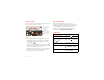
To enter a word,
just trace a path
through the
letters. To
capitalize, go
above the keypad.
For double letters,
circle the letter.
a
@
aa
e
3
ee
n
+
nn
aa
ee
nn
Multi-touch keyboard
Enter text a letter at a time. As you type, your
smartphone suggests words from your dictionary and
chosen language. The smartphone also automatically
enters apostrophes in some words, like “dont.”
To add a word to your dictionary, touch and hold the
word, then select
Add “word” to dictionary
.
Typing tips
To .. .
Enter one capital
letter
Tou ch S hi ft .
Enter only capital
letters, until you touch
Shift again
Touch Shift twice. Touch
again to revert to lowercase.
Move the text entry
cursor
Touch the text where you
want the cursor to go.
Select text Touch and hold text, then
touch
Select text
or
Select
all
.
Cut or Copy selected
text
Touch and hold text, then
touch
Cut
or
Copy
.