
User`s guide


18 Contacts
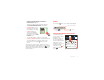
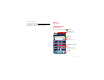
• To change which group of contacts is shown (
All
,
Facebook
, and so on) touch the filter name at the top.
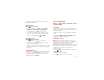
• To change how you view the list of contacts, flick left
or right at the bottom of the screen to select
History
(recently used),
A-Z
(list without status), or
Status
(list
with status).
Create contacts
Find it: >
Contacts
>
Google contact
from youraccount@gmail.com
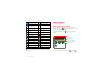
Add contact
Add contact
Add contact
First name
Last name
Phone
Home
Phone
Postal address
Or
g
anization
Email
Home
Email
Save Cancel
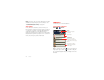
Select a picture
for the contact.
Set the number type.
Add more name details.
Remove this number.
Add another number.
Touch any entry area to open the touchscreen keypad.
When you’re finished, touch
Save
.
Where are contacts saved? Your smartphone saves
new contacts in its memory and on the Google Server or
Backup Assistant™, if you have a subscription. It also
updates your social networking account.
Edit or delete contacts
Find it: >
Contacts
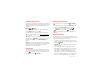
Touch the contact, then touch Menu >
Edit contact
or
Delete contact
.
Synchronize contacts
When you change one of your contacts, your
smartphone automatically updates your other social
networking accounts. When you change a social
networking friend, your smartphone updates your
contacts.
Personalize contacts
Find it: >
Contacts
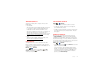
Add a photo: Touch the contact, touch Menu >
Edit
contact
, then touch .
Set a ringtone: Touch the contact, then touch Menu
>
Options
>
Ringtone
.