
User`s guide


17Contacts
Transfer contacts
Get all your contacts, all in one place. Here’s a few
helpful hints:
• Use Gmail™
All your Gmail contacts will automatically get synced
to your phone. Various computer applications for
mobile phones and email accounts allow you to
export your contacts as a “.CSV” file. You can then use
Gmail to import the file. For more details, go to
www.motorola.com/transfercontacts
or log in to your
Gmail account on your computer and select “Help”.
• More
There are other methods and tools to help you at
www.motorola.com/transfercontacts
.
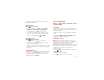
Link contacts
You might have two or more contacts for the same
person, maybe a Gmail contact who is also stored on
your phone, or one friend with two email addresses. To
combine these contacts:
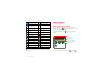
Find it: >
Contacts
Touch a contact to open it, touch Menu >
Edit
contact
, touch Menu >
Join
, touch the second
contact, then touch
Save
.
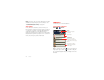
Call or email contacts
Find it: >
Contacts
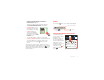
• To view contact information, touch the contact.
• To call, text, send an email, or see other options,
touch and hold the contact.
• To add a contact to Favorites, touch the contact, then
touch the star next to the contact’s name. The star
turns green.
View & use contacts
When you set up a social networking account (see
“Social networking” on page 23), you’ll know what
everybody’s up to and when. Every time you pick up a
call, check a message, or look up a friend’s contact info,
you’ll see their name and number, but you can see their
social network status and smiling face, too.
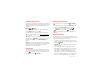
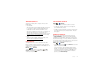
Find it: >
Contacts
• To find a contact, touch in the
Contacts
screen and
type the contact name.
Touch a contact to open its details. While viewing
details, you can start a call or message by touching
icons next to the phone number, email address, or
social network. To see your interactions with the
person, touch
Contact History
.