
User manual




2
Installing a Windows Printer Driver
2-6 Pi3505e Printer Driver
To display a Properties dialog box from the Printers folder
1 Click the Start button, point to Settings, and then click Printers.
2 Right-click the appropriate printer icon (Minolta Di3510 PCL6, for
example).
3 On the menu that appears, select Properties.
This displays a printer driver properties dialog box that lets you
configure general print settings.
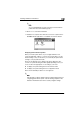
To display a Properties dialog box from an application menu
1 On the File menu of the application whose printer driver settings you
want to configure, select Print.
2 Check the Name of the Printer box to make sure that the name your
Minolta printer driver (Minolta Di3510 PCL6, for example) is displayed.
❍ If the name of your Minolta printer driver is not displayed, click M,
and then select it from the menu that appears.
3 Click the Properties button.
This displays a properties dialog box that lets you configure local print
settings. The settings you configure here will be valid only for the
application you are currently running.
✎
Tip
To configure device options (which only need to be changed when
you want to print on a device that is different from the one you
normally print on), you need to perform the procedure under “To
configure local printer driver settings for a specific application”
above.
✎
Note
The above steps are based on the Word-Pad application. Other
applications may require different steps to display their printer
driver properties. Follow the appropriate procedure for the
application you are using.