XXX Welcome to the XXX Issue 1 EN RM-971
Psst... This guide isn't all there is... For the online user guide and troubleshooting help, go to www.nokia.com/support. For info on Nokia Service terms and Privacy policy, go to www.nokia.com/privacy.
Safety We invite you to read the instructions on this guide before using the device. SWITCH OFF IN RESTRICTED AREAS Switch the device off when mobile phone use is not allowed or when it may cause interference or danger, for example, in aircraft, in hospitals or near medical equipment, fuel, chemicals, or blasting areas. Obey all instructions in restricted areas. ROAD SAFETY COMES FIRST Obey all local laws. Always keep your hands free to operate the vehicle while driving.
(SAR) section of this user guide. For more info, go to www.sartick.com. When a carry case, belt clip or other form of device holder is used for body-worn operation, it should not contain metal and should provide at least the above-stated separation distance from the body. Note that mobile devices may be transmitting even if you are not making a voice call.
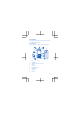
Get started Get to grips with the basics, and have your phone up and running in no time. Keys and parts Explore the keys and parts of your new phone. 1 2 3 4 5 6 7 8 9 Charger connector Flashlight Headset connector (3.
10 Selection keys 11 Earpiece 12 Camera lens. Before using the camera, remove the protective tape from the lens. 13 Antenna area Avoid touching the antenna area while the antenna is in use. Contact with antennas affects the communication quality and may reduce battery life due to higher power level during operation. Do not connect products that create an output signal, as this may damage the device. Do not connect any voltage source to the audio connector.
consult your mobile operator for the use of a SIM card that has a mini-UICC cutout. Use only compatible memory cards approved for use with this device. Incompatible cards may damage the card and the device and corrupt data stored on the card. Note: Switch the device off and disconnect the charger and any other device before removing any covers. Avoid touching electronic components while changing any covers. Always store and use the device with any covers attached. 1.
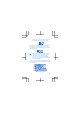
2. Place your fingers at the top middle of the back cover, and with your thumb on the logo, remove the cover. 3. If the battery is in the phone, lift it out. 4. Slide the SIM into the holder with the contact area face down.
5. Line up the battery contacts, and put the battery in. 6. Insert the memory card into the memory card slot. Push the memory card in until it locks into place. Important: Do not remove the memory card when an app is using it. Doing so may damage the memory card and the device and corrupt data stored on the card. 7. Replace the back cover. Remove the memory card Pull the memory card out. Switch on your phone Press and hold the power key.
2. Connect the charger to the phone. When done, unplug the charger from the phone, then from the wall outlet. If the battery is completely discharged, it may take several minutes before the charging indicator is displayed or before any calls can be made. Tip: You can use USB charging when a wall outlet is not available. Data can be transferred while charging the device.
2. Select Lock. Lock Unlock the keypad Press , and select Unlock. Change the volume Trouble hearing your phone ringing in noisy environments, or calls too loud? You can change the volume to your liking. Scroll up or down to change the volume during a call or when listening to the radio.
Basics Learn how to get the most out of your new phone. Explore your phone Explore your phone with a simple key press. See the apps and features of your phone Press Menu. Menu Go to an app or feature Press the scroll key up, down, left, or right.
Open an app or select a feature Press Choose. Choose Go back to the previous view Press Back. Back Go back to the home screen Press .
Switch the flashlight on On the home screen, quickly press the scroll key up twice. Menu Camera To switch the flashlight off, press up once. Do not shine the light in anyone’s eyes. Write text Writing with the keypad is easy and fun. Press a key repeatedly until the letter is shown. Type in a space Press 0. Type in a special character or punctuation mark Press *.
Switch between character cases Press # repeatedly. Type in a number Press and hold a number key. Use predictive text To speed up your writing, your phone can guess what you are starting to write. Predictive text is based on a built-in dictionary. This feature is not available for all languages. 1. Select Options > Dictionary and the language. 2. Start writing a word. When the word you want is shown, press 0. Change a word Press * repeatedly until the word you want is shown.
3. Pick a ringtone, and select OK. People & messaging Contact your friends and family using your phone. Stay tuned with the latest updates to your social networking services even when on the go. Make a call Learn how to make a call with your new phone. 1. Type in the phone number. To type in the + character, used for international calls, press * twice. The + character only works from abroad. The + character may not work in all regions. In this case, enter the international access code directly. 2. Press .
Send and receive messages Keep in touch with your friends and family through text messages. 1. Select Menu > Messaging. 2. Select Create message. 3. Type in a phone number, or select a recipient from your contacts list. 4. Write your message. Tip: To insert special characters, such as a smiley or symbol, select Options > Insert options. 5. Select Send. You can send text messages that are longer than the character limit for a single message. Longer messages are sent as two or more messages.
To keep in touch with your friends and family, sign in to your instant messaging, sharing, and social networking services. Select Menu and the service you want to use. The available services may vary. Internet Learn how to browse the web. Browse the web Catch up on the news, and visit your favourite websites on the go. 1. Select Menu > Internet. 2. Select the address bar. 3. Write a web address, and select OK. Tip: To search the internet, write a search word in the address bar.
1. To switch the camera on, select Camera. 2. To zoom in or out, press the scroll key up or down. 3. To take a photo, press the scroll key. View the photos you’ve taken > Photos > Captured. Select Record a video Besides taking photos, you can also record videos with your phone. 1. To switch the camera on, select Camera. 2. To switch the video camera on, select > Video camera. 3. To start recording, select . 4. To stop recording, select .
Operating the device in hidden mode is a safer way to avoid malicious software. Do not accept Bluetooth connection requests from sources you do not trust. You can also switch the Bluetooth function off when you are not using it. Entertainment Having a spare moment and in need of entertainment? Learn how to listen to the radio on your phone. Listen to music You can listen to your MP3 music files with the music player. To play music, you need to store the music files on a memory card. 1.
Find and save a radio station Search for your favourite radio stations, and save them, so you can easily listen to them later. 1. Select Menu > Music > Radio. 2. Select Options > Set frequency. 3. Type in the station frequency. 4. To save a station, select Options > Save station. Listen to a saved station Press the number key that matches the station location. View the list of saved stations Select Options > Stations.
Feature-specific information 1 This phone may contain promotional games. The promotion is timelimited and may expire. Please check Nokia store for more info. The end user must access the games download page through the Gift games icon on the main menu or from the Gift banner on Nokia store front page in order to download promotional games. The promotional free download may not happen when accessed directly from Nokia store.
wireless phone for essential communications like medical emergencies. Take care of your device Handle your device, battery, charger and accessories with care. The following suggestions help you keep your device operational. • Keep the device dry. Precipitation, humidity, and all types of liquids or moisture can contain minerals that corrode electronic circuits. If your device gets wet, remove the battery, and let the device dry. • Do not use or store the device in dusty or dirty areas.
When you cooperate and deliver all these materials to one of the available collection sites, you contribute in helping the environment and help to ensure the health of future generations. All electrical and electronic products and batteries may contain recycleable metals and other potentially hazardous substances and must be taken to their respective collection sites at the end of their working life. Under no circumstances should you break open a battery or other related materials.
objects into the battery, or immerse or expose it to water or other liquids. Batteries may explode if damaged. Use the battery and charger for their intended purposes only. Improper use, or use of unapproved or incompatible batteries or chargers may present a risk of fire, explosion, or other hazard, and may invalidate any approval or warranty. If you believe the battery or charger is damaged, take it to a service centre before continuing to use it. Never use a damaged battery or charger.
Hearing Warning: When you use the headset, your ability to hear outside sounds may be affected. Do not use the headset where it can endanger your safety. Some wireless devices may interfere with some hearing aids. Nickel The surface of this device is nickel-free. Vehicles Radio signals may affect improperly installed or inadequately shielded electronic systems in vehicles. For more info, check with the manufacturer of your vehicle or its equipment.
The exposure guidelines are based on the Specific Absorption Rate (SAR), which is an expression of the amount of radio frequency (RF) power deposited in the head or body when the device is transmitting. The ICNIRP SAR limit for mobile devices is 2.0 W/kg averaged over 10 grams of tissue. SAR tests are carried out with the device in standard operating positions, transmitting at its highest certified power level, in all its frequency bands.
to minimise interference on the network, the operating power of your mobile is automatically decreased when full power is not needed for the call. The lower the power output, the lower the SAR value. Device models may have different versions and more than one value. Component and design changes may occur over time and some changes could affect SAR values. The latest available SAR information for this and other Nokia device models can be found at www.nokia.com/sar.
Output 5 Vcc, 550 mA Rechargeable battery supplier Nokia Phone power consumption 3,7 Vcc Copyrights and other notices The availability of products, features, apps and services may vary by region. Nokia may, in its sole discretion, change, correct or discontinue any of its services in whole or in part. For more info, contact your Nokia dealer or your service provider. This device may contain commodities, technology or software subject to export laws and regulations from the US and other countries.
region. Please check with your local Nokia dealer for further details and availability of language options. FCC/MEXICO NOTICE This device complies with part 15 of the FCC rules. Operation is subject to the following two conditions: (1) This device may not cause harmful interference, and (2) this device must accept any interference received, including interference that may cause undesired operation. For more info, go to transition.fcc.gov/oet/rfsafety/rf-faqs.html.