
User Manual


and notifications, and another to show your personal e-mail.
This way, you do not have to see business-related messages
outside office hours.
Menu
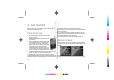
Select Menu.
The menu is a starting
point from which you can
open all applications in
the device or on a memory
card.
The menu contains
applications and folders,
which are groups of
similar applications. All
applications you install in
the device yourself are by
default saved in the Installations folder.
To open an application, scroll to it, and press the scroll key.
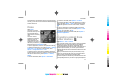
To view the applications in a list, select Options > Change
Menu view > List. To return to the grid view, select
Options > Change Menu view > Grid.
To view the memory consumption of different applications
and data stored on the device or memory card and to check
the amount of free memory, select Options > Memory
details.
To create a new folder, select Options > New folder.
To rename a new folder, select Options > Rename.
To rearrange the folder, scroll to the application you want to
move, and select Options > Move. A check mark is placed
beside the application. Scroll to a new location, and select
OK.
To move an application to a different folder, scroll to the
application you want to move, and select Options > Move
to folder, the new folder, and OK.
To download applications from the web, select Options >
Download applications.
Transfer content from
other devices
Select Menu > Tools > Switch.
You can transfer content, such as contacts, from a compatible
Nokia device to your new Eseries device using different
connectivity methods. The type of content that can be
transferred depends on the device model. If the other device
supports synchronisation, you can also synchronise data
between the two devices or send data from this device to the
other device.
When you transfer data from your previous device, it may
require you to insert the SIM card. Your new Eseries device
does not need a SIM card when transferring data.
Content is copied from the memory of the other device to the
corresponding location in your device. Copying time depends
Get started
17
Cyan
Cyan
Magenta
Magenta
Yellow
Yellow
Black
Black