
User's Manual




Camera
61
• Light source in front of the subject. Harsh sunlight
may cause the subjects to squint their eyes. The
contrast may also be too high.
• Optimal lighting is found in situations where there is
plenty of diffused, soft light available, for example, on
a bright, partially cloudy day or on a sunny day in the
shadow of trees.
Record videos
1 To activate the main camera, press and hold . If
the camera is in the Image mode, select Switch to
video mode from the active toolbar.
2 Press to start recording. In the portrait mode, use
the scroll key for recording. The record icon is
shown and a tone sounds, indicating that recording has
started.
3 Select Stop to stop recording. The video clip is
automatically saved to the Images & vids. folder of
Gallery. See ‘Gallery’, p. 45. The maximum length of the
video clip depends on the available memory.
To pause recording at any time, select Pause. The pause
icon ( ) blinks on the display. Video recording
automatically stops if recording is set to pause and there
are no keypresses within a minute. Select Continue to
resume recording.
To zoom in or out of the subject, press the volume key on
the side of the device. In the portrait mode, to zoom in or
out, press or .
To make lighting and color adjustments before recording
a video, use the scroll key to scroll through the active
toolbar. See ‘Setup settings—color and lighting’, p. 58 and
‘Scenes’, p. 58.
To activate the front camera, select Options > Use
secondary camera.
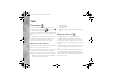
Video capture indicators
The video viewfinder displays the following:
1 The current
capture mode
indicator.
2 The audio mute
on indicator.
3 The active
toolbar, which
you can scroll
through before
recording to
select different items and settings (the toolbar is not
displayed during recording). See ‘Active toolbar’, p. 55.
4 Battery charge level indicator.
P2954_en.book Page 61 Tuesday, July 3, 2007 2:51 PM