
User's Manual






Camera
55
To activate the front camera, select Options > Use
secondary camera. To take a picture, press . To zoom
in or out, press or .
To leave the camera open in the background, and use other
applications, press . To return to the camera, press and
hold .
The camera goes into the battery saving mode if there are
no keypresses for a moment. To continue taking pictures,
press .
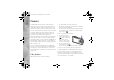
Still image camera indicators
The still image camera viewfinder displays the following:
1 The current capture mode indicator.
2 The active toolbar, .See ‘Active toolbar’, p. 55.
3 Battery charge
level indicator.
4 The image
resolution
indicator
indicates
whether the
quality of the
image is Print
2M - Large,
Print 1M - Medium, or MMS 0.3M - Small.
5 The image counter displays the estimated number of
images you can capture using the current image
quality setting and memory in use (the counter is not
displayed during image capture).
6 The device memory ( ) and memory card ( )
indicators shows where images are saved.
Active toolbar
The active toolbar provides you with shortcuts to different
items and settings before and after taking a picture or
recording a video. Scroll to items, and select them by
pressing . You can also define when the active toolbar
is visible on the display.
If you want the active toolbar to be visible before and
after taking a picture or recording a video, select
Options > Show icons. To view the active toolbar only
when you need it, select Options > Hide icons. Only the
capture mode and battery level indicators are shown on
the display. To activate the active toolbar, press . The
toolbar is visible for 5 seconds.
Before taking a picture or recording a video, in the active
toolbar, select from the following:
to select the scene
to select the flash mode (images only)
P2954_en.book Page 55 Tuesday, July 3, 2007 2:51 PM