
User Manual



Organiser
68
device or Yes to make and receive calls. Do not select Yes when wireless phone
use may cause interference or danger.
■ Calendar
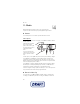
Select Menu > Organiser > Calendar.
The current day is indicated by a frame. If there are any notes set for the day, the
day is in bold type, and the beginning of the note is shown below the calendar. To
view the day notes, select View. To view a week, select Options > Week view. To
delete all notes in the calendar, select the month or week view, and select
Options > Delete all notes.
Other options for the day view may be to make a note; delete, edit, move, or
repeat a note; copy a note to another day; send a note with Bluetooth
technology; or send a note to the calendar of another compatible phone as a text
message or multimedia message. To set the date, time, time zone, date or time
format, date separator, default view, or the first day of the week, select Settings.
To set the phone to delete old notes automatically after a specified time, select
Auto-delete notes.
Make a calendar note
Select Menu > Organiser > Calendar. Scroll to the date, and select Options >
Make a note and one of the following note types: Meeting, Call,
Birthday, Memo, or Reminder. Fill in the fields.
Note alarm
The phone displays the note and if set, sounds a tone. With a call note ( ) on
the display, to call the displayed number, press the call key. To stop the alarm and
to view the note, select View. To stop the alarm for 10 minutes, select Snooze.
To stop the alarm without viewing the note, select Exit.
■ To-do list
To save a note for a task that you must do, select Menu > Organiser > To-do list.
To make a note if no note is added, select Add; otherwise, select Options > Add.
Fill in the fields, and select Save.
To view a note, scroll to it, and select View. While viewing a note, you can select
an option to edit the attributes. You can also select an option to delete the
selected note and delete all the notes that you have marked as done.