Quick Guide Nokia X2 RM-1014 Issue 1 EN
Psst... This guide isn't all there is... There's a user guide in your phone – it's always with you, available when needed. On the start screen, swipe left, and tap . For the online user guide, even more info, and troubleshooting help, go to www.nokia.com/ support. The instructions in this user guide are based on the latest available software version. If your device has not been updated to the latest available software, there may be differences in the availability and functionality of some features.
Copy contacts from your old phone 10 Switch between views 11 Take better photos with Smart mode 12 Update your phone software 13 Find your model number and serial number (IMEI) 14 Product and safety information 15 For your safety Read these simple guidelines. Not following them may be dangerous or illegal. For further info, read the complete user guide.
KEEP YOUR DEVICE DRY Your device is not water-resistant. Keep it dry. GLASS PARTS The device screen is made of glass. This glass can break if the device is dropped on a hard surface or receives a substantial impact. If the glass breaks, do not touch the glass parts of the device or attempt to remove the broken glass from the device. Stop using the device until the glass is replaced by qualified service personnel.
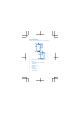
Keys and parts Explore the keys and parts of your new phone. 1 2 3 4 5 6 7 8 9 Micro-USB connector Earpiece Audio connector (3.
10 Camera flash 11 Antenna area 12 Loudspeaker 13 Camera lens. Before using the camera, remove the protective tape from the lens. Avoid touching the antenna area while the antenna is in use. Contact with antennas affects the communication quality and may reduce battery life due to higher power level during operation. Do not connect products that create an output signal, as this may damage the device. Do not connect any voltage source to the audio connector.
Insert the SIM card, battery, and memory card Learn how to get your phone ready. Important: Your device uses a micro-SIM card, also known as a mini-UICC SIM card. Use of incompatible SIM cards, or use of SIM card adapters, may damage the card or the device, and may corrupt data stored on the card. Use only compatible memory cards approved for use with this device. Incompatible cards may damage the card and the device and corrupt data stored on the card.
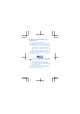
2. If the battery is in the phone, lift it out. 3. Push the SIM into the SIM1 slot, contact area face down. To remove the SIM, pull the card out. 4. Push the memory card into the memory card slot with the contact area face down. To remove the memory card, pull it out.
Important: Do not remove the memory card when an app is using it. Doing so may damage the memory card and the device and corrupt data stored on the card. 5. Line up the battery contacts, and put the battery in. 6. Replace the back cover. 7. To switch on, press and hold the power key. Your device has a maximum charging voltage of 4.35V. Use only batteries designed for a 4.35V charging voltage and approved by Microsoft Mobile. You can confirm the proper battery charging voltage from the battery label.
If the battery is completely discharged, it may take several minutes before the charging indicator is displayed or before any calls can be made. Tip: You can use USB charging when a wall outlet is not available. Data can be transferred while charging the device. The efficiency of USB charging power varies significantly, and it may take a long time for charging to start and the device to start functioning. Make sure your computer is switched on.
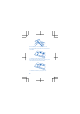
Tip: To copy contacts from a memory card, tap Import/export > Import from storage. 3. Select the account where you want to import the contacts. 4. Tap the contacts you want to import, or, to import all contacts, swipe up from the bottom of the screen, and tap All. Tip: You can also use the Contacts Transfer app to get your contacts. On the start screen, swipe left, and tap Contacts Transfer. Switch between views Your phone has 3 home screens: Fastlane, start screen, and apps menu.
• On the start screen, you can open apps and widgets and rearrange them as you like. • In the apps menu, you can see all your apps in alphabetical order and search your phone and the internet. Tip: In any app, press the home key to get back to the home screen you were last in. Switch between apps Press and hold the back key, swipe to the app you want, and tap the app. Tip: To close an app, tap .
Select the best photo After taking the photo, tap Best photo. The camera has selected the best photo. To select another one, tap the dots at the bottom of the screen. To save a photo, tap . Update your phone software Stay in step with the beat – update your phone software and apps to get new and enhanced features for your phone. You don’t need a computer and a cable to update your phone software. Just download and install the update using your phone.
After the update, go to www.nokia.com/support to get your new user guide. Your network service provider may send updates over the air directly to your phone. For more info on this service, contact your network service provider. Using services or downloading content, including free items, may cause the transfer of large amounts of data, which may result in data costs. Before starting the update, connect a charger or make sure the device battery has enough power.
Product and safety information Network services and costs You can only use your device on the GSM 850, 900, 1800, 1900; and WCDMA 850, 900, 1900, 2100 MHz networks. You need a subscription with a service provider. Using some features and downloading content require a network connection and may result in data costs. You may also need to subscribe to some features. Emergency calls 1. Make sure the device is switched on. 2. Check for adequate signal strength.
Crossed-out wheeled-bin symbol The crossed-out wheeled-bin symbol on your product, battery, literature, or packaging reminds you that all electrical and electronic products and batteries must be taken to separate collection at the end of their working life. Do not dispose of these products as unsorted municipal waste: take them for recycling. For info on your nearest recycling point, go to www.nokia.com/support. For more info on the environmental attributes of your device, see www.nokia.com/ ecoprofile.
Use the battery and charger for their intended purposes only. Improper use, or use of unapproved or incompatible batteries or chargers may present a risk of fire, explosion, or other hazard, and may invalidate any approval or warranty. If you believe the battery or charger is damaged, take it to a service centre before continuing to use it. Never use a damaged battery or charger. Do not charge your device during a lightning storm. Only use the charger indoors.
Nickel The surface of this device is nickel-free. Vehicles Radio signals may affect improperly installed or inadequately shielded electronic systems in vehicles. For more info, check with the manufacturer of your vehicle or its equipment. Only qualified personnel should install the device in a vehicle. Faulty installation may be dangerous and invalidate your warranty. Check regularly that all wireless device equipment in your vehicle is mounted and operating properly.
SAR tests are carried out with the device in standard operating positions, transmitting at its highest certified power level, in all its frequency bands. The maximum recorded SAR values for this device are: Maximum SAR value Frequency bands used when Maximum SAR value was recorded When held against the head 0.81 W/kg over 10g WCDMA2100+WLAN 2450 When operated at a separation distance of 1.5 centimetres (5/8 inch) from the body 0.
The World Health Organization (WHO) has stated that current scientific information does not indicate the need for any special precautions when using mobile devices. If you are interested in reducing your exposure, they recommend you limit your usage or use a hands-free kit to keep the device away from your head and body. For more information and explanations and discussions on RF exposure, go to the WHO website at www.who.int/peh-emf/en.
changes and improvements to any of the products described in this document without prior notice. Downloading of maps, games, music and videos and uploading of images and videos may involve transferring large amounts of data. Your service provider may charge for the data transmission. The availability of particular products, services and features may vary by region. Please check with your local dealer for further details and availability of language options.
information which has been encoded in compliance with the MPEG-4 Visual Standard by a consumer engaged in a personal and noncommercial activity and (ii) for use in connection with MPEG-4 video provided by a licensed video provider. No license is granted or shall be implied for any other use. Additional information, including that related to promotional, internal, and commercial uses, may be obtained from MPEG LA, LLC. See www.mpegla.com.