
User Manual





Media
40
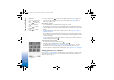
Tip! To take a
snapshot of a video clip,
select Options→ Take
screen shot in the Play
view, Edit Preview view or
in the Cut view.
Edit video clip:
• Move - Moves the video clip to the selected location.
• Add colour effect - Inserts a colour effect on the video clip.
• Use slow motion - Slows the speed of the video clip.
• Mute sound / Unmute sound- Mutes or unmutes the original video clip sound.
• Remove - Removes the video clip from the video.
• Edit sound clip:
• Move - Moves the sound clip to the selected location.
• Set duration - Edits the sound clip length.
• Remove - Removes the sound clip from the video.
• Duplicate - Makes a copy of the selected video clip or sound clip.
• Edit transition - There are three types of transitions: at the start of a video, at the
end of a video, and transitions between video clips. A start transition can be selected
when the first transition of the video is active.
3 Select Save to save your video. You can define the Memory in use in the Settings. The
default is the phone memory.
Tip! In the Settings
view you can define the
Default video name,
Default sc. shot name and
the Memory in use.
Select Send: Via multimedia, Via Bluetooth, or Via e-mail if you want to send the video.
Contact your service provider for details of the maximum multimedia message size that
you can send. If your video is too large to be sent in a multimedia message, a symbol
will appear.
Tip! If you want to send a video clip that is over the maximum multimedia message
size allowed by your service provider, you can send the clip using Bluetooth. ‘Sending data
using Bluetooth’, p. 89. You can also transfer your videos using Bluetooth into your
Bluetooth-enabled personal computer, or by using a memory card reader (internal/
external).
Movie director
To create muvees, press and select Media→ Movie. muvees are short, edited video clips
that can contain video, music and text. Quick muvee is created automatically by the Movie
R0915_en.book Page 40 Wednesday, September 15, 2004 12:14 PM