
User Manual





Camera and Gallery
36
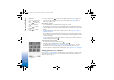
2 Press to move between Image and Video views. Open the Video view. An
indicator shows where the video will be saved: to phone memory ( ) or memory card
().
3 Press to start recording. The record icon is shown.
Options before
recording a video: Record,
New, Activate night mode
/ Deact. night mode, Mute
/ Unmute, Go to Gallery,
Adjust, Settings, Help, and
Exit.
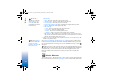
1. The elapsed time / time left with the current video
length setting.
2.The zoom indicator shows the zoom level. Press
to zoom in on your subject before or during recording.
Press to zoom out.
3. Microphone muted indicator .
4. Night mode active indicator .
To pause recording at any time, press . The pause
icon starts to blink on the display. Press again
to resume recording.
Shortcuts:
Press to activate or
deactivate Night mode.
Press to adjust
brightness.
Press to adjust
contrast.
Video recording is automatically stopped if recording is set to pause and there are no
key presses within a minute.
4 Press Stop to stop recording. The video clip is automatically saved to the Video clips
folder of the Gallery. See ‘Gallery’, p. 37.
After a video clip has been recorded:
• To immediately play the video clip you just recorded, select Options→ Play.
• If you do not want to keep the video, press .
• To return to the viewfinder to record a new video, press .
• To send the video via Bluetooth, via e-mail, or Via multimedia, press . For more
information see the ‘Messaging’ chapter, p. 46 and ‘Bluetooth connection’, p. 88.
Adjusting video recorder settings
Select Options→ Settings→ Video and the setting you want to change:
R0915_en.book Page 36 Wednesday, September 15, 2004 12:14 PM