
User Manual





Camera and Gallery
34
Shortcuts:
Press to activate or
deactivate Night mode.
Press to activate or
deactivate Sequence
mode.
Press to adjust
brightness.
Press to adjust
contrast.
2 To take a picture, press . Do not move the phone before the Camera application
starts to save the image. The image is saved automatically in the Images folder of
Gallery. See ‘Gallery’, p. 37.
When taking a picture:
• It is recommended to use both hands to keep the camera still.
• To take images or record video in a dark environment, use the Night mode. If you are
using the Night mode, the exposure time is longer and the camera needs to be kept still
longer.
• To adjust brightness or contrast before taking a picture, select Options→ Adjust→
Brightness or Contrast.
• The resolution of a zoomed picture is lower than that of a non-zoomed picture, but the
image remains the same size. You may notice the difference in image quality if viewed
on a PC, for example.
• Camera goes into battery saving mode if there are no key presses within a minute. To
continue taking pictures, press .
After the image has been taken:
• If you do not want to keep the image, press .
• To return to the viewfinder to take a new picture, press .
• To send the image via Bluetooth, via e-mail, or Via multimedia, press . For more
information see the ‘Messaging’ chapter, p. 46 and ‘Bluetooth connection’, p. 88.
• To set the picture as wallpaper in the standby mode, select Options→ Set as wallpaper.
Taking pictures in a sequence
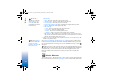
Select Options→ Sequence mode to set the camera to take 6 pictures in a sequence. After
the pictures have been taken, they are automatically saved in the Gallery, and they are
shown in a grid. See Fig. 6.
Fig. 6 Pictures taken in
a sequence.
R0915_en.book Page 34 Wednesday, September 15, 2004 12:14 PM