
User Manual

Making calls
26
Tip! If you want to
see the call duration
timer while you have an
active call, select
Options→ Settings→
Show call duration→
Yes.
Note: The actual time invoiced for calls by your service provider may vary,
depending on network features, rounding off for billing, and so forth.
Clearing call duration timers - Select Options→ Clear timers. For this you need the lock
code, see ‘Security’, ‘Phone and SIM’, p. 102. To clear an individual event, scroll to it, and
press .
Packet data
To check the amount of data sent and received during packet data connections, press
and select Log→ Packet data. For example, you may be charged for your packet data
connections by the amount of data sent and received.
Monitoring all communication events
Icons:
- incoming,
- outgoing, and
- missed
communication events.
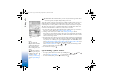
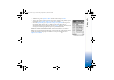
To monitor all voice and video calls, text messages, or data connections registered by the
phone, press and select Log, and press to open the general log. See Fig. 5. For each
communication event, you can see the sender or recipient name, phone number, name of
the service provider, or access point. You can filter the general log to view just one type of
event and create new contact cards based on the log information.
Tip! To view a list of
sent messages, press
and select Messaging →
Sent.
Subevents, such as a text message sent in more than one part and packet data
connections, are logged as one communication event. Connections to your mailbox,
multimedia messaging centre, or Web pages are shown as packet data connections.
Note: When sending messages, your phone may display the word “Sent“. This is an
indication that the message has been sent by your phone to the message centre
number programmed into your phone. This is not an indication that the message has
been received at the intended destination. For more details about messaging
services, check with your service provider.
R0915_en.book Page 26 Wednesday, September 15, 2004 12:14 PM