
User Manual

Making calls
24
Answering or rejecting a video call
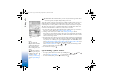
When a video call arrives, you can see the icon .
1 Press to answer the video call. Allow video image to be sent to caller? is shown.
If you select Yes, the image being captured by the camera in your phone is shown to
the caller. If you select No, video sending is not activated, and a still image is shown.
You will hear the sound. See ‘Tools’, Image in vid. call, p. 98.
If you use Nokia Video Call Stand PT-8, video call starts when you place the phone in
the stand.
2 To end the video call, press .
Call waiting (network service)
You can answer a call while you have another call in progress if you have activated the Call
waiting function in Tools→ Settings→ Call settings→ Call waiting (see also p. 24).
Tip! To change the
phone tones for different
environments and events,
for example, when you
want your phone to be
silent, see ‘Profiles -
setting tones’, p. 12.
• To answer the waiting call, press . The first call is put on hold.
• To switch between the two calls, press Swap. Select Options→ Transfer to connect an
incoming call or a call on hold with an active call and to disconnect yourself from the
calls. To end the active call, press . To end both calls, select Options→ End all calls.
Options during a call
Many of the options that you can use during a call are network services. Press Options
during a call for some of the following options: Mute or Unmute, Answer, Reject, Swap,
Hold or Unhold, Activate handset, Activate loudsp., or Activate handsfree (if a compatible
Bluetooth headset is attached), End active call or End all calls, New call, Conference, and
Transfer. Select:
R0915_en.book Page 24 Wednesday, September 15, 2004 12:14 PM