
User's Guide






Table Of Contents
- 1 Safety first
- Road safety comes first
- Be aware of interference
- Switch off in hospitals
- Switch off in aircraft
- Switch off when refueling
- Switch off near blasting
- Use your phone sensibly
- Observe infrared precautions
- Use only qualified service personnel
- Use approved accessories and batteries
- Keep your phone dry
- Backup copies
- Connecting to other devices
- Read instructions before you connect to other devices
- Make calls
- Make emergency calls
- 2 Welcome
- 3 Review the basics
- 4 Set up your phone
- 5 Add information
- 6 Use the phone book
- 7 Check call history
- 8 Use advanced calling features
- 9 Use voice mail
- 10 Personalize rings and tones
- 11 Personalize phone settings
- 12 Manage phone security
- 13 Your personal digital assistant
- 14 Use prepaid services
- 15 Set network services features
- 16 Communicate with text messages
- • About text messages
- • Use folders for text messages
- • Write and send a text message
- • Resend a message from the outbox
- • Receive a text message
- • Read a text message
- • Save a message in the archive folder
- • When your phone’s memory is full
- • Erase messages
- • Reply to a message
- • Forward a message
- • Send and receive e-mail messages
- • Reply to or forward an e-mail message
- • Receive an e-mail message
- • Use templates
- • Picture messages
- • Chat with other phone users
- 17 Use special features
- 18 Infrared
- 19 Connect to the Internet
- 20 Play games
- 21 Frequently asked questions (FAQ)
- 22 Glossary
- 23 Reference information
- 24 NOKIA One-Year Limited Warranty
- 6360 .1_title(1).pdf
&21),'(17,$/
6360 User Guide Draft [ 149 ] 14 May 2001
Reference information
23
Desktop Charging Stand (DCV-10)
Used together with the Standard Travel Charger (ACP-7U), the Rapid
Travel Charger (ACP-8U) or the Rapid Travel Charger (ACP-9U), the
Desktop Charging Stand is an economical choice when you need your
phone close at hand, always ready for calls.
This charging stand allows you to charge your phone’s battery in an
upright, obtainable position on your desk.
• Charging is indicated by the scrolling battery bars that are located on
the right side of your phone’s Start screen.
• When the scrolling stops, the battery is approximately 80% charged.
The battery is fully charged a couple of hours after this time.
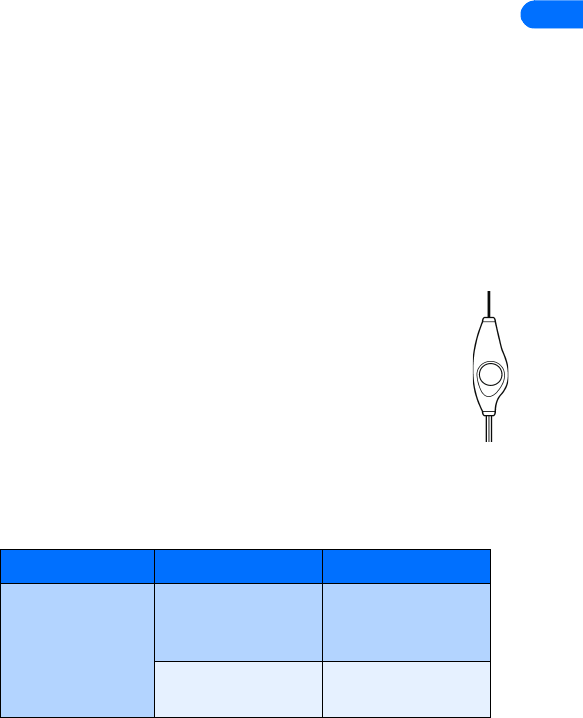
Headset (HDC-9P)
The headset provides handsfree operation.
It connects directly to the phone requiring
no additional adapter and you can end a call by
pressing the button located on the connecting cord, by
the microphone.
• TROUBLESHOOTING
This section lists some of the most commonly encountered problems and
provides possible solutions.
Problem Possible cause Possible solution
My phone isn’t
charging.
The charger and the
phone are not
properly connected.
Securely connect the
charger to the phone.
The charger is not
properly plugged in.
Ensure that the charger
is plugged in correctly.