6360 .1_title.fm Page 1 Friday, November 9, 2001 2:40 PM Nokia 6360 Notes (1 Wireless service provider ), ' Number to call for voice mail 1 Provider’s customer care 2 Model number Phone type & Where to get information Wireless service provider My number Wireless provider’s number 7, Phone notes $ / User Guide Electronic serial number (ESN) Wireless service provider Wireless service provider 6360 See “Find information about your phone” on page 7.
6360 .1_title.fm Page 2 Friday, November 9, 2001 2:40 PM The wireless phone described in this guide is approved for use in TDMA and AMPS networks. Legal information / Part No. 9353798, Issue No. 1 © 2001 Nokia Inc. All rights reserved. Nokia is a registered trademark of Nokia Corporation. $ Printed in Canada 12/2001 7, Nokia, Nokia Connecting People and the Original Accessories logos are trademarks of Nokia Corporation and/or its affiliates. US Patent No 5818437 and other pending patents.
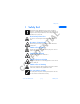
Safety first 1 1 Safety first $ Road safety comes first / Read these simple guidelines before you use your phone. Failure to comply with these guidelines may be dangerous or illegal. For more safety information, refer to “Important Safety Information” on page 142. 7, Do not use a wireless phone while driving. Park the vehicle first. Be aware of interference (1 All wireless phones may get interference that could affect performance. Switch off in hospitals ' Follow any regulations or rules.
1 Observe infrared precautions Do not point the IR beam at anyone’s eyes or allow it to interfere with other IR devices. Use only qualified service personnel $ / Only qualified personnel may install or repair phone equipment. Use approved accessories and batteries 7, Use only approved accessories and batteries. Do not connect incompatible products. Keep your phone dry (1 Your phone is not water-resistant. Keep it dry. Backup copies ' Remember to make backup copies of all important data.
Safety first Make calls Make emergency calls & 2 1 ), ' (1 7, $ Make sure the phone is switched on and in service. If the word Clear appears on the screen above the right selection key, press and hold it to clear the display. Enter the emergency number, then press Call. Give your location. Do not end the call until told to do so. 6360 User Guide Draft [3] 1 / Before you make a call, be sure your phone is switched on, and in service.
2 Welcome Nokia recommends that you read this chapter before you use your new phone. You will find useful information about: How to use this guide • How to understand network services • How to contact Nokia (1 7, • / Congratulations on your purchase of a Nokia mobile phone, a new tool for the mobile information society. $ 2 • GET THE MOST OUT OF THIS GUIDE ' The tips that follow can help you use this guide efficiently as you learn to use your phone.
Welcome • QUICK GUIDE TO FUNCTIONS Save a name and number Recall a name/number Recall a name/number during a call / $ Enter a number, press Options and select Save, then enter a name and press OK Press Names, select Find Press Options, scroll New call, press Select, press Find, enter first letter of the name Press and hold OR call your voice mailbox number Press Menu 1-1. Write the message.
• MENU SHORTCUTS Message 6 Organizer 6 - 1 Calendar 6 - 2 To-do list 7 Tools 8 Games 9 Infrared 10 Services 11 Prepaid 2 Call log 2 -1 Missed calls 2 -2 Received calls 2 -3 Dialed calls 2 -4 Clear call lists 2 -5 Call timers (1 Phone book 1 2 3 4 5 6 7 Find Add entry Edit name Erase Add number Settings 1-touch dialing ), ' 3 Profiles 3 -1 Normal 3 -2 Silent 3 -3 Meeting 3 -4 Outdoor 3 -5 Pager $ 7 - 1 Calculator 7 - 2 Stopwatch / 1 - 1 Write message 1 - 2 Write e-mail 1 - 3 Chat 1 - 4 Inbox 1
Welcome Observe text conventions Convention What it means bold Indicates one of the following items: The word or phrase appears on the phone’s screen. • Special text such as Notes and Warnings. 7, $ • bold and blue The word is an address on the World Wide Web. (1 bold, blue, and A definition for the word or phrase appears in the terms italic list (glossary) near the end of the user guide. italic ' Italics indicate emphasis. Pay close attention to any information in italics.
Look for updates 2 From time to time, Nokia updates this user guide to reflect changes or corrections. The latest version may be available at the Nokia site on the World Wide Web: / http://www.nokia.com www.nokiahowto.com 7, Sign up with a service provider $ Also, an interactive user guide is available at: (1 Before you can take advantage of any of the network services, you must sign up with a wireless service provider.
Welcome • Your ZIP code The serial number is on your phone’s label. 2 Nokia Products Ltd. 575 Westney Rd.
• Press and hold the key (or the key that your service provider instructed you to use) for 2 seconds. Your phone will automatically dial the provider’s customer support number if your provider offers this feature. 2 & 2 1 ), ' (1 7, $ / If your service provider determines that the problem is Nokia-related, the provider’s representative will direct you to the Nokia Customer Care Center (USA) or Nokia Customer Service (Canada).
Review the basics 3 Review the basics 3 / • AN ILLUSTRATED VIEW OF THE 6360 LEFT SIDE Internal antenna FRONT $ Earphone 7, Display screen (1 Volume control keys Selection and Scroll keys End key ), ' Talk key 2 1 Microphone Headset/TTY Connector IR port Charger Jack & TOP Power Key 6360 User Guide Draft BOTTOM [ 11 ] 14 May 2001
• ABOUT THE ANTENNA 7, Contact with the antenna affects call quality and may cause the phone to operate at a higher power level than otherwise needed. / Your phone has a built-in antenna. As with any other radio transmitting device, do not touch the antenna unnecessarily when the phone is in use. $ 3 Antenna (1 Hold the phone to your ear, placing your finger tips on the ridge of the battery cover, which is located below the antenna area on the back of your phone.
Review the basics Place the battery in the compartment with the label side facing up and the golden contact area aligned with the contact prongs. Make sure the bottom of the battery makes contact with the prongs in the lower end of the space, then press the top end of the battery into place. 4 Replace the cover by sliding it upward until you hear a click. (1 7, 3 / 3 $ 2 Charge the battery Follow these guidelines to charge the battery.
For best performance, charge the battery for 24 hours before you use the phone. 3 / The charging time depends on the charger and battery you use. For example, the charging time for the BLB-3 battery with the ACP-8U charger is approximately 1 hr 30 min. $ • REMOVE THE BATTERY 7, You will need to remove the existing battery if you want to install a new battery. Make sure the phone has been turned off for 10 seconds.
Review the basics recharging. Charging time depends on the charger and battery used. See “Batteries” on page 146 for charging, talk, and standby times. • If the battery has become completely empty, you may need to recharge it for a few minutes before you can make or receive calls. $ • PROLONG BATTERY LIFE 7, A battery lasts longer and performs better if you fully discharge it from time to time. To discharge your battery, follow either of these steps.
• CHECK THE START SCREEN 3 Return to the Start screen $ You can easily return to the Start screen from any activity other than an active call. To do so, press / When you switch on your phone, a Nokia welcome appears, and then you see the Start screen. This is the “home base” for your phone. . 7, The phone clears (erases) any text or information you may have been entering, and returns to its Home screen when you press . However, if you were writing a new text message, the message will remain.
Set up your phone 4 Set up your phone • SET UP YOUR HEADSET $ / 4 7, Depending on your service provider, your phone may come with a headset that you can use while talking. The headset provides convenient handsfree use of the phone. Connect the headset (1 When you use the headset, 1 Plug the headset jack into the bottom of your phone. 2 Put the round ear plug into one ear. Use the headset ), ' With the headset connected, you can make, answer and end calls as usual.
Adjust screen contrast You can change the contrast on your phone’s screen, making the screen brighter or darker. Press Menu 4-4-5 (Settings > Phone settings > Display contrast). 7, 1 $ 4 / Note: This topic and the topic on setting screen contrast requires that you use menus. You may wish to review the next two chapters to learn more about menus and then return here to adjust volume and contrast. (1 After about two seconds, a bar chart displays the current contrast level.
Set up your phone • LOCK KEYPAD (KEYGUARD) The keyguard feature allows you to lock the keypad to prevent accidental keypresses (for example, when your phone is in a pocket or purse). 4 $ / To lock the keypad, press Menu, then (within three seconds). To unlock the keypad, press Unlock and then press (within three seconds). While in keyguard, you can tap the power key to activate the lights in the phone.
Key What it does Press to review the list. Press a number shown on the list. again to call $ 4 / Talk: Press to make a call to the name or number shown on the screen or to answer a call. Press once at the Start screen to view the first in a list of numbers you’ve most recently dialed. 7, End: Press to end a call or to silence the ring from an incoming call. Also, press to return to the Start screen. (1 - Number: Use keys 2 through 9 to enter numbers and letters.
Set up your phone Hold the phone as you would any other telephone, with the earpiece over your ear and the microphone near your mouth. Or, connect and use the headset. 2 Press number keys to enter a number, including area code if needed. 3 Press . When your phone rings, press . End a call Press Avoid unintentional calls Press Menu and then . Activates the Keyguard feature. You cannot accidentally make a call. Turn Keyguard off Press Unlock and then 7, Answer a call (1 . ' .
• REVIEW PHONE SYMBOLS The following is a collection of the various symbols and signals you may see on your phone. Symbol What it means / 4 $ You have an active call. 7, The phone is waiting for you to enter numbers or text. (1 Silence All: You have turned off your phone’s keypad tones, warning tones, and message alert tones and set your ringing tone to Silent. You’ve activated Keyguard to help prevent any accidental keypresses. ' You have one or more voice messages waiting.
Set up your phone Symbol What it means 4 $ / You are using predictive text. The first word of every sentence will be uppercase. Available when entering information into your Calendar, To-do list, Phonebook or writing text messages. Press and hold to switch to numbers. 7, You are using predictive text. Characters you enter will be uppercase letters. Press to switch to lowercase letters. Press and hold to switch to numbers. ' (1 You are using predictive text.
• USE THE SELECTION KEYS Right selection key / Left selection key For example, pressing when the word Menu appears above it shows the first of many menus. You scroll through the menus using the and keys. • Pressing menu. 7, $ • when Names appears above it opens the phone book (1 4 Note the two selection keys beneath the screen. The function of each key is determined by the word shown above them on the screen.
Set up your phone • BROWSE PHONE MENUS A menu A menu is a list of various phone features. Your phone has up to 10 menus, plus the phone book menu (Names). Each menu can contain several levels of submenus. 7, Scroll through menus $ You can use menus and submenus two ways: by scrolling or by using a shortcut. / 4 At the Start screen, press Menu, and then scroll through the menus using the and keys. 2 Press Options, Select, or OK, by pressing the selection key for the option you want.
To exit a menu and return to the Start screen, press . If you leave a menu by pressing , you cancel any changes you made. • Some menus may not appear. Ask your service provider for details. / You can return to the previous menu level by pressing Back. • MESSAGES. . . . . . . . . . . . . . . . . . . . . . . . . . 1 Write message . . . . . . . . . . . . . . . . . . . . . . . 1-1 Write e-mail. . . . . . . . . . . . . . . . . . . . . . . . . 1-2 Chat . . . . . . . . . . . . . . . . . . . . . . . . . . . .
Set up your phone Duration of all calls . . . . . . . . . . . . . 2-5-4 Life timer . . . . . . . . . . . . . . . . . . . . . . 2-5-5 Clear timers . . . . . . . . . . . . . . . . . . . . 2-5-6 $ / 4 ' (1 7, PROFILES . . . . . . . . . . . . . . . . . . . . . . . . . . . 3 Normal . . . . . . . . . . . . . . . . . . . . . . . . . . . . . 3-1 Select . . . . . . . . . . . . . . . . . . . . . . . . . 3-1-1 Customize . . . . . . . . . . . . . . . . . . . . . 3-1-2 Ringing options . . . . . . . . . . . .
/ $ 7, VOICE5 Voice recorder5-1 Voice tags5-2 Voice commands5-3 ORGANIZER6 Calendar6-1 To-do list6-2 ), ' (1 4 Network feature setting menu.
Set up your phone • PHONE BOOK MENU Switch back to the Start screen. • Press Names.
5 Add information This section gives detailed instructions for entering names, numbers, messages, and other information into your phone. / “Communicate with text messages” on page 103 tells you how to send, receive, and manage mobile messages. “Use the phone book” on page 39 tells you how to use and manage names and $ • • 7, 5 numbers.
Add information Predictive text for text in messages. Writing messages and notes. / • ABC AND 123 METHODS The phone shows the current method with an icon, or small picture, in the upper left corner of the screen. 7, (1 Enter letters Icon showing current entry method $ You can enter any combination of numbers and letters into phone book entries, Web addresses, and more using the ABC and 123 methods. When you are in a name box in the phone book, the phone shows the icon.
Enter numbers When you are in a number box in the phone book, the phone shows the icon. To enter numbers, simply press the numbers you want. Enter punctuation and other characters Key Characters $ Depending on the language selected for your phone, the following characters may be available: Key Characters 7, 5 / • ABC2 DEF3 TUV8 WXYZ9 Space, 0 ' GHI4 PQRS7 (1 Punctuation & symbols shortcut Press and hold for puncutation& symbols. ), JKL5 Changes letter case.
Add information Select. ERASE MISTAKES If you make a mistake: Press to erase one character to the left. • Press and hold Clear to erase all text. / • , showing you are using lowercase To enter a number while in letter mode, press and hold a key until the key’s number appears on the screen. (1 • icon switches to . 7, The letters.
Note: For faster scrolling when viewing special characters, you can use the (up), (down), (left) and (right) keys. This character sends command strings to the network. Contact your service provider for details. p This character creates a pause that occurs when the phone dials a number. Numbers entered to the right of this special character are automatically sent as touch tones after a 2.5-second pause.
Press on Press onl Press onli Press Nokia / Add information $ Keys and tools for predictive text Purpose Keys with letters Use for word entry. Press each key only once for each letter. 7, Key If the dictionary sees a word it doesn’t recognize, you see Spell above the left selection key. Select Spell, enter the word you want to enter, and press Save. ), Spell ' (1 Press to view the next matching word if the underlined word is not the word you intended.
Turn on input Press Menu, and then press Select. 2 When Write message appears, press Select. 3 Enter a character using the keypad. 4 Press Options, scroll to Predictive text and press Select. 5 Scroll to the dictionary you want (for example, English). 6 Press OK. 7, $ 1 (1 5 The maximum number of characters available. The character counter appears in the top right corner of the screen and counts down for each character you add. / 160 ), ' T9 dictionary on appears.
Add information CHECK A WORD When you’ve finished writing, make sure the underlined word is the word you intended to write. • Insert a punctuation mark, if needed. • Press • Start writing the next word. $ to confirm the change and enter a space. 7, If the word is not correct: • / If the word is correct: Press repeatedly until the word you want appears, and then press to confirm it. (1 OR • Press Options, scroll to Matches, and then press Select. Scroll to the correct word and press Use.
INSERT SYMBOLS 1 To put a symbol in the message, press Options and scroll to Insert symbol (or press and scroll to the symbol you want). WRITE COMPOUND WORDS 1 Write the first part of the word and press 2 to accept that part. Write the last part of the compound word and press to enter. & 2 1 ), ' (1 7, 5 / Select the symbol you want (use the scroll keys to move through the symbols) and press Insert.
Use the phone book Phone book You cannot enter the same name twice. If you try to save a name that is already in the phone book, the phone asks if you want to add the number to an existing name. (1 • An entry in the phone book can consist of a number only, or a name and a number. 7, • $ Your phone includes a phone book that can store up to 500 entries (names and associated phone numbers).
4 Press Done to return to the Start screen. Save an entry using the names menu 2 Scroll to Add entry and press Select. 3 Enter a name and press OK. 4 Enter a number and press OK. 5 Press Done to return to the Start screen. $ / Press Names to enter the phone book. 7, 6 1 • SAVE A TEXT ENTRY WITH A NAME (1 Once you have added a contact to your phone book, you can add an email address, a mailing address, or a note to that contact. ' Text entries can only be added to existing contacts.
Use the phone book 3 Press Find, and then press . You may have to scroll to the appropriate entry in a list if you have stored names that are similar to each other. Recall information with shortcuts / You may want to use some of these shortcuts, or alternate methods for recalling a number. Press Names, enter the first letter of the name, scroll to the name, and press . • At the Start screen, press the scroll keys to immediately enter your list of names, scroll to the name you want, and press .
“Tag” a phonebook listing with a voice signal so you can call by speaking the signal into your phone. Caller groups Create groups for listings with similar attributes Change phone book views Shows all the names that are stored in your phone book. Three names appear on the screen at a time. Name only Displays individual names only. You can view the corresponding phone number by pressing Details and then scrolling up or down. Name+number Shows individual names and numbers.
Use the phone book 2 Press Details, and then press Options. 3 Scroll to Edit number or Edit name and press Select. 4 Edit the name or number and press OK. / • ERASE STORED NAMES AND NUMBERS $ Erasing stored names and numbers removes them from your phone. Once you erase an item, you can restore it only by reentering it. Recall the phone book entry you want to erase. 2 Press Details, and then press Options. 3 Scroll to Erase, and press Select. (1 7, 1 The message Erase all details? appears.
7, From the phone book 1 Press Names, scroll to Add number, and press Select. 2 Scroll to the name to which you want to add the number and press Add no. 3 Scroll to the type of number you are adding (General, Mobile, Home, Work or Fax), and press Select. (1 6 $ There are several ways to add a number to an existing name in the phone book.
Use the phone book Change the number type / Once you have saved a name with two numbers, you can change the number type for either of the phone numbers. (For example, you can change the type if you saved a number as General and you want to change it to Home.) Recall the name from the phone book. 2 Press Details, and then scroll to the number you want to change. 3 Press Options, scroll to Change type, and press Select. 4 Scroll to the number type you would like and press Select.
ADDING A NAME AND PHONE NUMBER TO A CALLER GROUP 1 Once you have recalled the desired name and number from the phone book, press Details. Scroll to Caller groups, and press Select. 3 Scroll to the desired caller group (for example Family), and press Select. / 2 Scroll to Caller groups and press Select. 3 Scroll to one of the caller groups and press Select. 4 Scroll to one of the following functions and press Select.
Use the phone book • CHECK MEMORY STATUS Press Names and scroll to Settings. 2 Scroll to Memory status and press Select. & 2 1 ), ' (1 7, $ 1 / You can learn what percentage of your phone’s memory is free and what percentage has been used.
7 Check call history Received calls • Dialed numbers • Time spent on calls $ • 7, Missed calls (1 • CHECK MISSED, RECEIVED, OR DIALED CALLS 1 Press Menu 2 (Menu > Call log) select Call log. 2 Use and numbers. 3 Press Select at the submenu you want. 4 For missed, received, and dialed numbers, a phone number (or the name associated with a number in the phone book) appears. 5 Use and to scroll to the number or name you want, and then press Options.
Check call history Saves the number in your phone book. Add to name Adds the number to a name you’ve already entered in your phone book. Erase Removes the number from the call log. View number Shows a number when an associated name appears on the screen. This option works only if you have stored the associated number in the phone book. 7, $ / Save Tip: To dial any number that appears on your phone’s screen, press .
1 Press Menu 2-4 (Menu > Call log > Clear call lists). 2 Use or to scroll through the options list. Stop at the appropriate option and press Select. $ 3 / The list includes the following options: All, Missed, Dialed, and Received. • CHECK CALL TIMERS (1 7 7, The All option clears every number in every list, whereas the other options clear only the numbers associated with that option. For example, the Dialed option clears only the numbers associated with calls you previously dialed.
Check call history Shows the time used for all calls for the life of your phone. This option cannot be reset. Clear timers Clears (erases) all call timers for the currently selected phone number. Your phone includes separate timers for each number used, with the exception of the life timer. / Life timer 7, $ Caution: If you select the Clear timers option, the action cannot be undone.
8 Use advanced calling features / This chapter describes advanced calling features such as conference calling, using call waiting, and using credit cards for calls. Not all the features described here are available in all wireless network systems. $ • SET IN-CALL OPTIONS 7, Your phone allows you to use a number of features during a call. These features are known as in-call options. (1 Many in-call options are network service features. To use these options, you must contact your service provider.
Use advanced calling features Mute/ unmute Mutes the phone’s microphone. If, somehow, your phone’s microphone has already been muted, Unmute appears instead of Mute. Press OK to choose either of these options. $ / These options can affect the microphones of any accessories connected to the phone. • USE CALL WAITING (1 7, If you have call waiting, your phone beeps during a call to let you know that someone else is calling you.
Manage calls Call waiting works with both local and long distance calls. • To answer an incoming call, press . • To switch from one call to another, press • To end both calls, press . / . $ Make a conference call The conference call feature varies based on wireless systems. Contact your service provider for details. 1 While in a call, you can either dial the number you want to conference in and press .
Use advanced calling features During the call, press Options. 2 Scroll to Phonebook and press Select. 3 Press Select at Find. 4 Enter a name and press Find, or scroll through the phone book. 5 Press Details. $ / 1 • USE CALL FORWARDING (1 7, With call forwarding, you can send incoming calls to another phone number. This way, if you are unable to receive calls on your phone, all calls going to that phone can be forwarded to another phone. You never have to miss an important call.
following list, and press Select. Forward all calls Forwards all incoming calls. Forwards calls only when you’re on your phone. Forwards calls if you don’t answer. Forward if not answered $ This option is handy if you want to give your phone to someone for a short period of time, but you don’t want them to answer the phone. 7, 8 / Forward if busy Forward if out of Forwards calls if you are out of reach for your wireless network or if your phone is turned off.
Use advanced calling features • If you want to stop this process prior to the last attempt, press This stops the automatic redialing. . Before you can use the automatic Redial feature, you must activate it. Press Menu 4-3-1 (Settings > Call settings > Automatic redial). 2 Scroll to On. 3 Press Select. $ / 1 7, • USE A CALLING CARD (1 You can use a calling card when you dial long distance calls. First you must store your calling card information in the phone.
Use for cards that require you to Prefix + phone number + card number Dial the prefix (any numbers that must precede the phone number) and phone number you want to dial, and then card number (+ PIN, if required). Press Select. $ 7 / Dialing sequence Save calling card information (step 2) 1 When prompted for the calling card’s access number, enter the number and press OK. (1 8 7, The order of the following steps may vary, depending on which dialing sequence your card uses.
Use advanced calling features 4 Enter your security code and press OK. The message Card ready for use appears. Make a calling card call Enter the phone number, including any prefix (such as 0 or 1) your calling card might require when you make a calling card call. / 1 $ See your calling card for instructions. Press and hold until your phone displays the message Card call and then Wait for tone, then press OK. 3 When you hear the tone from your calling card service, press OK.
You hear several beeps, and Please speak now appears. If you’re using the headset, release the button. 5 Speak clearly into the microphone. Note: Do not press Quit unless you want to cancel the recording. / The phone automatically stops recording and then saves and replays the voice tag. $ If recording is not successful, your phone displays Voice system error. Press Options, scroll to Add voice tag, and repeat steps 3 - 5. Voice tags are not language dependent.
Use advanced calling features 2 Pronounce the voice tag clearly into the microphone. Searching appears. When the phone finds the voice tag, Found appears, and the phone automatically dials the number. 3 / If the phone does not locate a number, No match found. Try again? appears. Press Yes to try again or Exit to cancel and return to the Start screen. 7, $ If you’re using the headset and the phone does not locate the number, you will hear an error tone and No match found appears.
2 Press Select, then scroll to the name with the voice tag you want to erase. 3 Press Options, scroll to Erase, and press OK. Erase voice tag? appears. Press OK to erase the voice tag. $ • VOICE RECORDER / 4 8 (1 7, This feature allows you to record pieces of speech or sound with your phone and listen to them later. You can record information such as phone numbers and personal memos, but the voice recorder can also record an active phone conversation.
Use advanced calling features View recording list and play recordings You can view your saved recordings by selecting the Recording list option. Press Menu 5-1-2 (Voice > recorder > recording list). 2 Once in you are in the Recording list, select the recording you would like to play, and then select Playback. You can end the playback by selecting Stop. / 1 $ Erase a recording 7, From the Recording list menu, select the recording you would like to erase and select Erase.
Phone feature You can add a voice tag to select a profile, or activate a feature Silent / Meeting $ Outdoor Pager 7, My profile 1 My profile 2 Infrared Activate infrared Recorder Record (1 Call voice mailbox ), ' 8 Voice mailbox Add a voice tag for the command Press Menu 5-2 (Voice > Voice tags). 1 1 Scroll to the phone function you wish to tag, then press Select. 3 Press Options, then select Add command. 2 2 & 4 Press Start, then speak the voice tag clearly into the microphone.
Use advanced calling features Activate a voice command After you have associated a voice tag with a phone function, you can issue a command by speaking the voice tag. There are three ways to activate a voice command: / If you have the optional headset attached, press and hold the headset button. OR • Press and hold Names. OR • Press and hold the volume down key. 7, When Please speak now appears, pronounce the voice tag clearly into the microphone.
Before you can use Send own caller ID, you must first store its feature code. Otherwise, this feature might not appear on your phone’s menu. Store the feature code Press Menu 4-6-2 (Settings > Network services > Network feature setting). / 1 $ The Feature code field appears. 2 Enter the feature code your service provider gave you and press OK. 3 Use 4 Highlight Yes and press Select. to scroll to Send own caller ID and press Select.
Use advanced calling features You must select a phone number for your home system, and if you travel outside your home system, you can choose another number. Only one phone number can be active at a time. $ / You may not need up to three numbers for your phone if your service provider has service or roaming agreements for each area in which you wish to use your phone. Contact your service provider for details.
• SET TOUCH TONES / Touch tones (or DTMF tones) are sounds that are produced when you press the keys on your phone’s keypad. You can use touch tones for many automated over-the-phone services such as checking bank balances and airline schedules and using your voice mailbox. Touch tones can be sent only when a call is active. $ Warning: If you send touch tones while in the analog mode, be careful not to send confidential information.
Use advanced calling features Store touch tone sequences (strings) You can store touch tone strings the same way that you store names and numbers in your phone book. You can store an entire sequence of digits and send it as touch tones for frequently used strings of numbers. Press w or p where needed. $ 2 / STORE TOUCH TONE STRINGS WITH PHONE NUMBERS 1 Enter the phone number that you want associated with a touch tone.
9 Use voice mail $ / Voice mail provides a way for callers who miss you to leave a message that you can retrieve later. To use voice mail, you must sign up for the feature with your wireless service provider. • CHECK FOR MESSAGES 7, Your phone beeps when you receive a voice message. Also, the message New voice message appears on your phone’s screen, along with the icon.
Use voice mail • SET GREETINGS $ • LISTEN TO YOUR VOICE MESSAGES / Voice greetings may vary in different wireless systems. If you need information about how to record your greeting, contact your service provider. 7, The way you listen to your voice messages varies, depending on your service provider. Call your service provider if you have any questions. When your phone alerts you to new voice messages, press Listen and follow the instructions given on the phone.
10 Personalize rings and tones • Ringing tone $ Ringing options Ringing volume • Vibrating alert • Message alert tone • Keypad tones • Warning tones • Accepted caller groups (1 • ' 1 • 7, A profile is a “set of settings” you can use to customize the way your phone works.
Personalize rings and tones 3 Press OK to select a profile. • CUSTOMIZE A PROFILE Press Menu 3 (Menu > Profiles). 2 Scroll to the desired profile in the list. 3 Press Select to view the options for the selected profile. $ / 1 Activates the currently highlighted profile. Customize Enables you to customize a profile by changing the current settings. (1 7, Select Press OK to choose from several lists. Enables you to rename the profile.
Select. The phone rings normally. Ascending Ringing volume increases (gets louder) if the phone is not answered. Ring once The phone rings once to indicate an incoming call. Beep once The phone beeps once to indicate an incoming call. Silent The phone makes no sound. 7, $ / Ring Set the ring volume Press Menu 3 (Menu > Profiles). 2 Use or to scroll to the profile for which you want to set the ringing volume, and press Select. 3 Highlight Customize and press Select.
Personalize rings and tones 1 Press Menu 3 (Menu > Profiles). Your phone lists each profile. Use or ringing tones. to scroll to the profile for which you want to set the 3 Press Select. 4 Scroll to Customize and press Select. 5 Scroll to Ringing tone and press Select. 6 Scroll through the options, and when you hear the tone you want to use, press Select. 7, $ / 2 Set a vibrating alert (1 Instead of choosing to have your phone ring, you can have it vibrate to indicate an incoming call.
4 Scroll to Keypad tones and press Select. 5 Use or to scroll to one of the levels and press OK. If you choose Off, no keypad tones are heard.) • If you chose the Silent profile in step 2, then the keypad tones are turned off. Set warning and game tones $ / • Press Menu 3 (Profiles). 2 Use or to scroll to the profile for which you want to set the warning tones, and press Select. 3 Select Customize and press Select. 4 Scroll to Warning and game tones, and then press Select.
Personalize rings and tones 4 Scroll to Message alert tone, and then press Select. 5 Use or to scroll through your choices. The phone plays samples of each choice as you scroll to it. Select the tone you want. / 6 $ • RENAME PROFILES 7, You can rename any of the profiles except Normal. You may want to use your own name for one of the profiles. If you do this, then whenever that profile is selected, your name appears on the Start screen. 1 Press Menu 3 (Menu > Profiles).
11 Personalize phone settings • SET THE LANGUAGE You can set your phone to use a certain language. $ / You can change certain settings so that your phone suits your own needs and lifestyle. Changes you can make include changing the language on the screen, showing or hiding the clock, and setting up one-touch dialing. (1 7, Your possible choices are English, Spanish, Canadian French, Brazilian Portuguese, Russian, Hebrew, and Traditional Chinese. Languages vary in different regions.
Personalize phone settings or 23:12. If you set time format to 12-hour, use am or pm and press OK. or • If you set the time format to 24-hour, the time is set as soon as you press OK after adjusting the time. $ Show the clock on the Start screen to scroll to / • Press Menu 4-2-2-1 (Settings > Time settings > Clock > Show/Hide clock). 2 To show the clock, scroll to Show clock and press Select. 7, 1 Select Hide clock if the clock is showing and you don’t want to see it.
Turn off the network date and time update Press Menu 4-2-3 (Settings > Time settings > Auto update of date and time), and then press Select. 2 Scroll to Off, and then press Select. / 1 (1 7, You can set your phone to show a brief welcome note each time you switch on your phone. The note can include your name, a reminder, or more. The maximum length of this note is 44 characters. $ • ADD A WELCOME NOTE 1 Press Menu 4-4-3 (Settings > Phone settings > Welcome note).
Personalize phone settings • : You can use this key to dial a customer care operator. See “Contact your service provider” on page 9 for details. You can overwrite this feature and assign a 1-touch dial location to the key. / Set up a speed-dial key Press Names and scroll to 1-touch dialing. 2 Press Select. 3 Use or to scroll to the first number that includes the message (empty) and press Assign. 4 Use or to scroll to the name and number to which you want to assign this key and press Select.
Erase speed dialing numbers You can erase speed dialing key assignments at any time. 1 Press Names. 2 Use 3 Scroll to the key you want to erase and press Options. 4 Scroll to Erase and press Select. 5 Press OK. / to scroll to 1-touch dialing and press Select. 7, $ or • SET YOUR PHONE TO ANSWER AUTOMATICALLY (1 You can set your phone to answer incoming voice calls after one ring.
Personalize phone settings Note: Car does not appear in the list unless the phone has been connected to a car kit. 2 Scroll through your choices in the list below, and press OK. Instructs the phone to turn off the lights within 15 seconds if no keys are pressed. On Instructs the phone to leave the lights on the entire time that your phone is connected to the car kit. 7, $ / Automatic • RESTORE THE FACTORY SETTINGS (1 You can change the default (factory) settings for your phone.
• Large print • Audiocassette • E-text (electronic documents on a 3.5-inch disk, in Microsoft Word or WordPerfect format). LPS-1 Mobile Inductive Loopset $ / To request any format, call Nokia Customer Care at (888) 665-4228. TTY/ TDD users can contact Nokia at (800) 246-6542. 7, The LPS-1 Loopset is a Nokia accessory designed to make the 6300 series phone more accessible to hearing-aid users.
Personalize phone settings Equalizer • Ability to send and receive short text messages • E-mail • Convenience of one-touch dialing • Vibrating alert for incoming calls and messages / • $ TTY/TDD capable 7, This feature makes the phone more user friendly for hearing-impaired users. The TTY connection is available.
3 When the receiving party answers, you can begin typing text on the TTY/TDD. Receiveing a TTY/TDD call Ensure the TTY and phone are connected as described earlier in this section. 2 Once contacted by the other party, type responses on the TTY/TDD. End a TTY/TDD call to hang up your phone.
Manage phone security 12 Manage phone security Your phone is equipped with a versatile security system that is intended to prevent unauthorized use of the phone. / You cannot activate or use certain phone features without having first successfully entered your phone’s security code. The default (preset) security code is 12345. • Nokia highly recommends that you immediately change this code. Then, write down and store the new code in a safe place, away from your phone.
4 At the message Verify new security code, enter your new security code again and press OK. The message Security code changed appears. $ / If you have changed your security code and don’t remember the new code, contact your service provider. Once you have changed your security code, the default setting is no longer valid. • RESTRICT CALLS 7, You can restrict incoming and outgoing calls. To restrict outgoing calls, you create a list of restrictions and apply the appropriate restriction.
Manage phone security 12 restriction, the options become available: Allows you to select call restrictions from the outgoing calls list. Add restriction Allows you to add a call restriction. Edit Allows you to edit an existing call restriction. Erase Erases an existing call restriction. 7, $ / Select (1 Restrict outgoing calls Press Menu 4-7-1 (Settings > Security settings > Call restrictions). 2 Press Select, enter your security code, and press OK.
12 4 Scroll to Select and press Select to choose from your list of call restrictions. If you have not added any restrictions, your only option will be All calls. Scroll to the restriction you want to activate and press Mark. / 5 Turn off call restrictions $ Turn off restrictions by following the same steps you used to restrict incoming or outgoing calls. When you get to step 5, Scroll to the restriction you want to deactivate and press Unmark. • You’re asked if you want to save changes.
Your personal digital assistant 13 13 Your personal digital assistant $ / Your phone features a personal digital assistant which includes a calendar, to-do list, a calculator and a stopwatch. Each of these features will help you to organize different facets of your personal and business life efficiently . 7, • CALENDAR (1 The calendar keeps track of notes, calls, meetings, and birthdays. It can also sound an alarm when it is time for you to make a call, go to a meeting, or wake up.
13 Calendar options in day view OPTION 1: VIEW DAY This option is only available if you have written notes for the selected day. 7, $ / OPTION 2: MAKE A NOTE To make a note for a specific date, select the date, then press Options, and select the Make a note feature. There are four different types of notes to choose from: Meeting, Call, Birthday and Memo. Scroll to the desired note type and press Select.
Your personal digital assistant 13 • Send via IR • Send as a note • Send at text 7, $ / OPTION 6: SETTINGS The Settings option allows you to set the date, time, date format, time format and the week starts format for the calendar. The Auto Erase option allows you to set the phone to automatically delete old notes after a certain period of time. However, repeat notes such as birthday or anniversary notes will not be deleted.
13 • USE THE CALCULATOR Your phone’s calculator adds, subtracts, multiplies, divides, and converts currencies. Press Menu 7-1 (Tools > Calculator). 2 Enter the first number in the calculation. 3 Based on the type of calculation that you need to perform, use one of the following actions: ...Do this Enter a decimal point Press Add Subtract . Press for + symbol. Press twice for - symbol. Press three times for * symbol. ' Multiply 7, If you want to...
Your personal digital assistant SET THE EXCHANGE RATE 1 Press Menu 7-1 (Menu > Tools > Calculator), and then press Options. Use to scroll to Exchange rate and press Select. 3 Select the exchange rate: Foreign units converted to home units or Home units converted to foreign units. 4 Press Select. $ or / 2 The exchange rate box opens, with the number 1. Enter the appropriate number and press OK. 7, 5 (1 The number 1 is overwritten by the number you entered. To enter a decimal point, press .
Measure time Press Menu 7-2 (Tools > Stopwatch) 2 Scroll to Split timing, then press Select. 3 Press Start. / 1 Measure split time $ The running time appears on the display. You can press Stop during any timing action to end the time measurement. Press Menu 7-2 (Tools > Stopwatch) 2 Scroll to Split timing, then press Select. Press Start. 3 Take an intermediate time by pressing Split. (1 7, 1 The clock continues to run. The split time appears below the running time.
Your personal digital assistant Save the time While the clock is running, press Stop, then press Options. 2 Scroll to Save, enter a title for the measurement, then press OK. If a title is not entered, the time measurement will be used as a title. / 1 Choose other stopwatch options $ You can choose the following options when using the Stopwatch. What it does 7, Choice Shows up when the Stopwatch is working in the background. Show last time Allows you to view the last measured time.
14 Use prepaid services With prepaid service, you buy wireless network services in advance. Your phone works the same way it did before, with some additional features. $ / Prepaid service may not be available from your wireless service provider. Contact the service provider for details. • MANAGE PREPAID SERVICE (1 7, After you sign up with your service provider for prepaid service, you need to activate the Prepaid menu. This menu appears on your screen only if you’ve activated the service.
Use prepaid services Press Menu 11-3 (Prepaid > Save access phone numbers). 2 At Save access phone numbers, press Select. 3 Scroll to Replenish phone number, enter the access number you got from your service provider, and press Select. 4 Scroll to Balance phone number, enter the balance number you got from your service provider, and press OK. 7, • ADD MONEY TO YOUR ACCOUNT $ The message Saved appears to confirm each entry.
then Checking balance. A voice message gives you the current balance. Press to terminate the call.
Set network services features 15 Set network services features Voice privacy • Call waiting • Call forwarding • Sending own number 7, • $ / You can subscribe to various network services whose availability depends on your service provider. Your phone supports the network services listed here. These services are not available from all providers or in all areas.
Your phone automatically searches for available networks and chooses the appropriate one. Every time you turn on your phone, it resets to Automatic. Manual The phone searches for networks and then shows a list of the ones that are available. If an available network is found, the word Available: appears on the screen followed by the name of the network. To choose the network listed, press OK. $ / Automatic 7, New search Your phone begins a new search for both private and residential systems.
Communicate with text messages $ (1 • ABOUT TEXT MESSAGES 7, You can use your phone to send and receive short text messages and e-mail if your service provider offers the message feature and if you subscribe to the service. Both services are network dependant features, so you must consult your service provider. / 16 Communicate with text messages ' Message recipients: The phone to which you send a text message must support text messages.
The archive folder stores messages you want to save. Templates The templates folder stores message templates you edit and create. A template is like a form letter—a message you can use many times. $ • WRITE AND SEND A TEXT MESSAGE / Archive 1 7, When writing text messages, use the predictive text method for fast text entry. For details, see “Write with predictive text” on page 34. Press Menu - 1 - 1 (Messages > Write message) The message screen appears.
Communicate with text messages Options when writing a text message Sends the message. Settings Allows you to choose options for the message: Callback no., Reply request, Read receipt, and Urgent. Save Saves the message. Clear text Clears the message screen. Exit editor Takes you back to the Write message screen. Insert name Allows you to insert a name from the phone book. (1 7, $ / Send Insert number Allows you to insert a number from the phone book.
sending attempt was unsuccessful. Scroll to the message, and then press Select. 2 Press Options. 3 Scroll to Send, and press Select. 4 Enter or find the number to which you want to send the message, and press Send. $ / 1 7, • RECEIVE A TEXT MESSAGE • (1 When you receive a text message, the phone plays a message alert tone and the text message icon appears, along with one of the following messages: Message received: Means that you have an unread message or page.
Communicate with text messages 2 Press Select to read the message. 3 Press Options for a list of choices you have while reading the message (see the list at the end of this section). 4 Press OK when the option you want is highlighted. $ / In your inbox, text messages are shown in the order in which they were received, unless one is an emergency message. An emergency message overrides any other message and appears first.
• SAVE A MESSAGE IN THE ARCHIVE FOLDER When you send or receive a text message, you can save it in the archive folder. Messages can be saved from the inbox and the outbox. / Save a message Highlight the message you wish to save and press Select. 2 Press Options. 3 Scroll to Save, and then press Select. 7, The message Saved to archive appears. $ 1 (1 • WHEN YOUR PHONE’S MEMORY IS FULL When your phone’s message memory is full, one or more messages of the lowest priority are automatically deleted.
Communicate with text messages Erase messages from folders Press Menu 1-8 (Messages > Erase msgs). You will have the following options: All read, Inbox, Outbox, and Archive. 2 Scroll to the folder from which you want to empty all messages and press Select. / 1 Enter your security code and press OK. The message All messages erased appears. 7, 3 $ All messages in that folder will be deleted.
5 Edit the number if needed, and then press OK. • FORWARD A MESSAGE While reading a message in the Inbox, press Options. 2 Scroll to Forward, press Select, and choose whether your message should be sent as a text message or as e-mail. 3 Press Options, or edit the message and press Options. 4 Scroll to Send, and then press Select. 5 Enter or recall the recipient’s phone number, and then press OK.
Communicate with text messages The maximum number of characters for message length varies; check with your service provider for details. You can turn on predictive text input if you wish. For information, see “Write with predictive text” on page 34. When you’ve finished the message, press Options, select Send e-mail. A status message tells you the mail is being sent. / 6 7, $ If your phone asks for an e-mail gateway number, contact your service provider.
• USE TEMPLATES You can view, edit and erase the preset messages, or templates, that are available for writing a message. Templates can be used when you write, reply to, or edit a message. / Work with templates Press Menu 1-7 (Messages > Templates). 2 Scroll to the template you want and press Select. 3 Press Options to view the menu list: 7, $ 1 Erases the template. Send Sends the template as a text message. Edit Allows you to edit the template before sending.
Communicate with text messages • PICTURE MESSAGES You can send picture messages with your phone. There are several images included in your phone and space for one additional picture. All images can be replaced or deleted. / Note: Picture messaging must be supported by your service provider. $ Send picture messages Press Menu, then Select. 2 Scroll to Picture Messages and press Select. 3 Scroll to the picture you want to send, then press View. 7, 1 (1 The picture appears.
Note: You can use predictive text input or standard text input to write the message. See “Write with predictive text” on page 34. for more information. Scroll to Send picture and press OK. 7 Enter the phone number to which you want to send the picture message and press OK. / 6 $ Sending picture message appears, followed by Picture message sent. Receive picture messages 7, Note: The phone number you choose must be able to receive picture messages.
Communicate with text messages chat partner. You can even chat with someone over the Internet. To use chat you must subscribe to text messaging, which is network dependent. Contact your service provider for more information. Start a chat session Press Menu 1-3 (Messages > Chat), and then press Select. 2 Enter the other party’s phone number or recall it from the phone book and press OK. 3 At Your chat name:, enter a name for the chat session and press OK.
2 Scroll to Chat history and press Select. [graphic here to show chat history -- call outs to show chat names, current message at top of screen & some slang 4 fun] / Change your chat name From the message screen press Options. Scroll to Chat name, press Select, then enter new nickname. $ 1 2 End your chat session 7, Warning: Once you exit your chat session, the messages are deleted automatically. There is no way to save the chat history. From the message screen press Options.
Use special features 17 Use special features $ • SEND AND RECEIVE BUSINESS CARDS / This section describes several special features, including transmission of business cards, downloading ringing tones from the Internet, and setting the alarm clock. 7, Your phone can send or receive electronic business cards. A business card consists of a name, phone number, and text entry. You can save received business cards in your phone book. (1 Send a business card Find the name in your phone book.
17 1 When your phone shows Business card received, press Show. 2 Scroll through the available information. Save a viewed business card While viewing the business card, press Options. 2 Scroll to Save, and then press OK. $ Delete a viewed business card / 1 While viewing the business card, press Options. • Scroll to Discard, and then press OK.
Use special features personal placeholder, if any are remaining, or a tone you’ve downloaded previously. 4 Press OK. $ Discard received ringing tones / The phone saves the new tone in the list of ringing tones. For instructions on changing the ringing tone on your phone, see “Set the ringing tone” on page 74. You can discard a ringing tone if you don’t want to save it. 7, Press Exit. OR (1 Press Options, scroll to Discard, and then press Select.
17 2 Enter the time for the alarm and press OK. Use the hh:mm format (03:40, for example). The alarm clock replaces any existing numbers with the new time. 3 Select either am or pm. Press OK. $ 4 / The am and pm options appear only if you’ve chosen the am/pm format for the clock. appears 7, The Alarm on message appears, and the alarm clock icon on the Start screen. Turn off the alarm clock when it sounds (1 When the alarm clock sounds: Press Stop to turn it off.
Infrared 18 Infrared Your phone is capable if interacting with, or connecting to a variety of devices using IR (infrared) or the DLR-3P serial cable. $ / Your phone can exchange information with other phones, desktop and laptop PCs, and handheld devices. Your phone can also function as a wireless modem when connected to PCs and handheld devices. 7, • INFRARED BASICS (1 Your phone can send and receive certain types of data by way of the phone’s infrared (IR) port.
Check the status of an IR connection The status of an IR connection is shown by the infrared icon . When appears steady, there is an IR connection between your phone and the other device. • When • When blinks, your phone is trying to connect to the other device or the connection has been lost. 7, • SEND AND RECEIVE INFORMATION $ doesn’t appear, no IR connection exists. / • (1 You can transmit information in your phone book by infrared (IR) using the industry-standard v.card format.
Infrared Receive a business card from another device You can receive business cards from another compatible phone. The user of the other phone or devices sends you a card as described in the previous section. Point the two IR ports at each other. 2 Press Menu 9 (Menu > Infrared). 3 When you see the message Business card received, press Show. 4 Press Options to select Save or Discard, and press OK. $ / 1 If you press Save, you see the confirmation message Business card saved.
SEND A REMINDER NOTE TO ANOTHER DEVICE 1 Scroll to the reminder you wish to send and press Scroll to Send, and then press Point the infrared ports of each device at each other. 4 Scroll to Send via IR and press 7, to start data transfer. (1 • PC CONNECTIVITY . . $ 2 3 / Make sure that the other phone or device is set to receive data by way of its IR port. Refer to the user guide for the other device for mored information on enabling IR communications and receiving data over IR.
Infrared Modem Setup You can use your Nokia phone as a wireless modem with your laptop computer, giving you access to the Internet (for e-mail and Web browsing) or corporate networks wherever you are. $ / Before you can use this function, please download and install the Nokia Modem Setup application. This application automates the process of installing a new hardware device with your Windows operating system.
19 Connect to the Internet $ 7, You can also save the address of any Internet site as a bookmark, much the same way you bookmark a Web page on your personal computer. / Your phone has a built-in browser you can use to connect to selected services on the Internet. You can view weather reports, check news or flight times, view financial information, and much more. (1 To use the browser, you may need to subscribe to additional services.
Connect to the Internet • SET UP FOR BROWSING $ • SIGN ON TO THE INTERNET / You should not need to do anything to set up your phone for browsing. Your service provider usually modifies the appropriate settings when you subscribe to the feature. Contact your service provider if you have problems using the browser. 7, You use the Services menu to connect to the Internet. 1 At the Start screen, press Menu 10 (Services). 2 Choose Home, then press Select.
• USE BROWSER OPTIONS (SERVICES MENU) The Services menu gives you the options shown in the following list. $ / Some service providers may have customized the options on the Services menu. Contact your service provider for more information if any of the options shown here are not available. Starts the browser and takes you to your service provider’s home page.
Connect to the Internet Choose browser options (while connected) While you’re connected to the Internet, the phone’s browser provides the options described in the following list. $ / Developers of wireless Internet sites may add options to the browser menu that are specific to their Web sites. These options are often links to other areas within the site. As in any other menu, scroll to the link you want and press Select. Takes you back to the service provider’s home page.
2 Scroll to Bookmarks and press Select. 3 Press Options. 4 Scroll to Save as bookmark and press Select. $ The message Bookmark saved confirms your choice. 7, ENTER A BOOKMARK MANUALLY 1 At the Services menu, press Select. Scroll to Bookmarks and press Select. 3 Press Options. 4 Highlight New bookmark and press Select. (1 2 5 / SAVE AN ADDRESS AS A BOOKMARK 1 Navigate to the site you want to bookmark and press Options. Enter the site’s address (example: my.yahoo.com) and press OK.
Play games 20 Play games Not only can you use your phone for communication but also for some serious fun. You can choose from any of the five games listed below. $ / Warning: Do not switch on the phone when wireless phone use is prohibited or when it may cause interference or danger. Even when you’re simply playing a game, the phone is active. Start a new game Scroll to the Games menu, and press Select. 2 Highlight Select game, and press Select. 3 Scroll to the desired game, and press Select.
21 Frequently asked questions (FAQ) / This section lists and answers the questions phone users most frequently ask. 7, Q. What is my security code? $ Some of the answers tell you to use menu shortcuts. For a complete listing of these shortcuts, refer to “Shortcuts” on page 26. (1 A. The default security code is 12345. However, Nokia recommends that you change this code immediately. Certain features can be used only after the correct security code has been successfully entered. Q.
Frequently asked questions (FAQ) use, press Select. Q. How do I store my voice mailbox number? / A. Press Menu 1-9-2 (Messages > Voice messages > Voice mailbox number), enter your voice mailbox phone number, and press OK. The screen tells you that the number is saved. $ This voice mailbox number is valid unless your phone number changes. If your phone number changes, you will have to save a new voice mailbox number. 7, Q. How do I call my voice mailbox number (retrieve voice messages)? (1 A.
Use or to scroll to the first number that includes the message (empty) and press Assign. Repeat these steps as many times as necessary. / Enter or recall the name/number you want to assign this key and press Select. $ Q. How do I find out the amount of memory I have used in my phone? A. Press Names and scroll to Settings. 7, Press Select. Scroll to Memory status and press Select again. Your memory status appears. (1 Q. How do I find my phone’s electronic serial number (ESN)? ' A.
Glossary 22 Glossary A business card is the same as an entry in the phone book. It may contain a name, phone number, and text entry. It can also be sent to other devices. $ / Business card 7, Call forwarding A network services feature you use to forward incoming calls to another number. A list used to track numbers for incoming, outgoing, or missed calls. Call log A log that registers information about calls you make and receive.
Predictive text A method of entering information in your phone that uses a dictionary to predict, or guess, what you are writing. $ / Primary number The number your phone dials when you select a name from the phone book that has more than one number assigned to it. A group of settings you can use to customize the way your phone works. Quick save A fast method for saving a number. Ringing tone The sound your phone makes when you receive a call. Ringing tones can be ringing sounds or short tunes.
Reference information 23 Reference information • BATTERIES AND CHARGERS $ / This section provides information about the phone’s batteries, accessories, chargers, safety guidelines and technical information. Be aware that the information in this section is subject to change as the batteries, chargers, and accessories change. 7, This phone is intended for use when supplied with power from chargers labeled ACP-7U, ACP-8U, LCH-8, or LCH-9.
Do not short-circuit the battery. Accidental short-circuiting can occur when a metallic object, like a coin, a clip, or a pen causes a direct connection of the + and - terminals of the battery, which are metal strips on the back of the battery. $ / An example of short-circuiting could occur if you carry a spare battery in your pocket or purse, where the battery could come into contact with such objects as a coin. Short-circuiting could damage either the battery or the connecting object.
Reference information Traffic safety Do not use a hand-held telephone while driving a vehicle. Always secure the phone into its holder; do not place the phone on the passenger seat or where it can break loose in a collision or a sudden stop. 7, Operating environment $ Remember: Road safety always comes first! / The use of an alert device to operate a vehicle’s lights or horn on public roads is not permitted.
23 HEARING AIDS Some digital wireless phones may interfere with some hearing aids. In the event of such interference, you may want to consult your service provider. $ / OTHER MEDICAL DEVICES Operation of any radio transmitting equipment, including cellular phones, may interfere with the functionality of inadequately protected medical devices. Consult a physician or the manufacturer of the medical device to determine if they are adequately shielded from external RF energy or if you have any questions.
Reference information 23 / Areas with a potentially explosive atmosphere are often—but not always— clearly marked. These areas include the following: below deck on boats; chemical transfer or storage facilities; vehicles using liquefied petroleum gas (such as propane or butane); areas where the air contains chemicals or particles, such as grain, dust, or metal powders; and any other area where you would normally be advised to turn off your vehicle engine.
23 • EMERGENCY CALLS $ / IMPORTANT This phone, like any wireless phone, operates using radio signals, wireless and landline networks, and user-programmed functions. Because of this, connections in all conditions cannot be guaranteed. Therefore, you should never rely solely on any wireless phone for essential communications (for example, medical emergencies). 7, Emergency calls may not be possible on all wireless phone networks or when certain network services and/or phone features are in use.
Reference information and establish permitted levels of RF energy for the general population. The guidelines are based on standards that were developed by independent scientific organizations through periodic and thorough evaluation of scientific studies. The standards include a substantial safety margin designed to assure the safety of all persons, regardless of age and health.
23 For body-worn operation, to maintain compliance with FCC RF exposure guidelines, use only Nokia-approved accessories. When carrying the phone while it is on, place the phone in the carrying case (Nokia Tested Accessory) that has been tested for compliance. / Use of non-Nokia-approved accessories may violate FCC RF exposure guidelines and should be avoided. (1 7, $ *In the United States and Canada, the SAR limit for mobile phones used by the public is 1.
Reference information 23 could damage it. Do not drop, knock, or shake the phone. Rough handling can break internal circuit boards. • Do not use harsh chemicals, cleaning solvents, or strong detergents to clean the phone. • Do not paint the. Paint can clog the device’s moving parts and prevent proper operation. • Use only the supplied or a Nokia-approved replacement antenna.
23 be dangerous. • BATTERIES / This section provides information about the phone’s batteries. Be aware that the information in this section is subject to change. $ Dispose of used batteries in accordance with any local regulations. 7, The tables shown in this section provide information about battery options that are available for your phone, charging times with the Rapid Travel Charger (ACP-8U), the Standard Travel Charger (ACP-7U), talk times, and standby times.
Reference information Warning: Dispose of used batteries in accordance with any local regulations. 23 Digital talk Analog talk time time Standby time $ Battery option / Refer to the following table for more information on talk and standby times in both digital and analog networks. Analog 7, Digital • CHARGERS AND OTHER ACCESSORIES (1 This section provides information about the phone’s chargers and accessories.
23 Standard Travel Charger (ACP-7U) This is a lightweight (187g) and durable AC charger. To use the Standard Travel Charger, plug it into a wall outlet and connect the lead from the charger to the base of your phone. / • To use the Rapid Travel Charger (ACP-8U), plug it into a standard 120V or 220V AC wall outlet, and connect the lead from the charger to the base of your phone. (1 • 7, This is a lightweight and durable AC charger.
Reference information 23 Desktop Charging Stand (DCV-10) / Used together with the Standard Travel Charger (ACP-7U), the Rapid Travel Charger (ACP-8U) or the Rapid Travel Charger (ACP-9U), the Desktop Charging Stand is an economical choice when you need your phone close at hand, always ready for calls. $ This charging stand allows you to charge your phone’s battery in an upright, obtainable position on your desk.
Possible cause Possible solution My phone isn’t making/receiving calls. The battery is not charged. Charge the battery. The signal strength is poor. If you are indoors, move toward a window. I can’t listen to my voice messages. You don’t have voice mail service. Call your wireless service provider. $ / Problem 7, 23 Call your wireless service provider. (1 You have not set up your voice mailbox with your service provider.
Reference information Frequency range Lowband 824.04 - 848.97 MHz (TX) 869.04 - 893.97 MHz (TX) 23 Up to 600mW Battery voltage 3V $ Transmitter output power / Highband 1850.04 - 1909.92 MHz (TX) 1930.08 - 1989.
24 24 NOKIA One-Year Limited Warranty $ / Nokia Inc. (“Nokia”) warrants that this cellular phone (“Product”) is free from defects in material and workmanship that result in Product failure during normal usage, according to the following terms and conditions: The limited warranty for the Product extends for ONE (1) year beginning on the date of the purchase of the Product.
NOKIA One-Year Limited Warranty 24 itemized receipt. The Consumer shall bear the cost of shipping the Product to Nokia in Melbourne, Florida. Nokia shall bear the cost of shipping the Product back to the Consumer after the completion of service under this limited warranty.
24 b) If “a” is not convenient because of distance (more than 50 miles) or for other good cause, the Consumer shall ship the Product prepaid and insured to: $ / Nokia Mobile Phones Attn: Repair Department 795 West Nasa Blvd. Melbourne, FL. 32901 7, c) The Consumer shall include a return address, daytime phone number and/or fax number, complete description of the problem, proof of purchase and service agreement (if applicable).
NOKIA One-Year Limited Warranty 24 responsible for all shipping charges. 9 The Product consists of newly assembled equipment that may contain used components that have been reprocessed to allow machine compliance with Product performance and reliability specifications. 1 ), ' (1 7, $ / 10 ANY IMPLIED WARRANTY OF MERCHANTABILITY, OR FITNESS FOR A PARTICULAR PURPOSE OR USE, SHALL BE LIMITED TO THE DURATION OF THE FOREGOING LIMITED WRITTEN WARRANTY.
24 liability beyond that which is expressly provided for in this limited warranty including the provider or seller of any extended warranty or service agreement. $ / 13 This is the entire warranty between Nokia and the Consumer, and supersedes all prior and contemporaneous agreements or understandings, oral or written, and all communications relating to the Product, and no representation, promise or condition not contained herein shall modify these terms.