
User`s manual


19
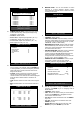
z Moving zoomed screen;
- Horizontal Movement: Jog/Shuttle.
- Vertical Movement: Hold ▲ or ▼ key and turn
Jog/Shuttle.
7.4 RECORD
z Recording mode set before delivery by manufacturer
(Default recording mode) is Schedule Recording. In
this default recording mode, it records 24 hours/day
continuously in weekday and on the weekend.
z Once you press the REC key while you see live view,
the record type is changed to Emergency Record
mode. Press STOP key to exit from Emergency
Recording mode and return to Schedule Record mode.
z Schedule Record: Record and stop as set (time
interval and record type) in RECORD > SCHEDULE
SETUP menu.
z Emergency Record: at full resolution/in best quality.
- Record type: CONTINUOUS.
- Quality: SUPER FINE.
- Resolution(8/16ch): 120 (100) ips@720X240 (288)
- Resolution(4ch): 60 (50) ips@720X240 (288)
z Stop Record: Recording stopped as set in
SCHEDULE SETUP menu.
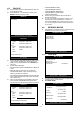
z Record Type;
- A: Alarm Recording.
- M: Motion Recording.
- C: Continuous Recording.
- AM: Alarm & Motion Recording.
- AC: Continuous & Alarm Recording.
- MC: Continuous & Motion Recording.
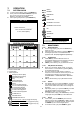
z Icon & REC LED Status;
Type Icon REC LED
A Green Blink
M Green Blink
C Green Solid lit
AM Green Blink
AC Green Solid lit
Schedule
MC Green Solid lit
Emergency
Red Solid lit
Stop
Whie Off
z This DVR unit does not record in following conditions;
- While entered in the Menu.
- No camera is connected.
- Overwriting is off in the Record Setup menu.
7.5 PALYBACK
z On record mode or stop mode, press PLAY key to
play the recorded data in 1x speed.
z For backward playback, press PLAY key again.
z Use Jog/Shuttle to pause and control playback speed.
z To stop playback, press the STOP kety.
z Using Jog/Shuttle;
- Press the J.SHUTTLE key in playback mode. The
Jog/Shuttle is ready for use. The [J.Shuttle] LED will
solid lit while you operate the Jog/Shuttle.
- For forward playback, turn the Shuttle right and turn
Shuttle left for backward playback.
- Turn Jog using your index figure to see picture by
picture in forward or backward direction.
z Operation of Shuttle is as follows.
- 1/4 x: 4 times slower than normal playback speed.
- 1/2 x: 2 times slower than normal playback speed.
- 1 x: Normal playback speed.
- 2 x: 2 times faster than normal playback speed.
- 4 x: 4 times faster than normal playback speed.
- 16 x: 16 times faster than normal playback speed.
- 64 x: 64 times faster than normal playback speed.
z If you want to keep the playback speed you selected
using Shuttle, just hold the shuttle at that location for a
few seconds, and playback in speed you selected
continues until you rotate Shuttle again.
7.6 SEARCH
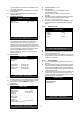
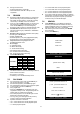
z Press SEARCH key, and 3 different methods for
searching recorded data are available as shown in
following SEARCH window. For selecting searching
method, use ▲▼
◀ ▶ keys or Jog/Shuttle.
z After selecting each search method, press ENTER
key for playback.
z To exit, press MENU key.
SEARCH
SEARCH BAR
TIME/DATE
EVENT LIST
SELECT MENU : ▲▼
,
&
[
ENTER
]
SEARCH BAR
[TARGET DATE / TIME]
020 %
SELECT: JOG, SHTTLE
SEARCH : [ENTER], EXIT : [MENU]
TIME
/
DATE
[ START ] 2005/JUN/20 AM04:04:12
[ END ] 2005/JUN/20 PM08:12:23
INPUT DATE / TIME
2005 / JUN / 07 AM04:04:12
SELECT: ◀ ▶
, EDIT: + -
SEARCH : [ENTER], EXIT : [MENU]