
User guide





8
Chapter 2, Connecting External Devices to Matrox Convert DVI
¡ Important Convert DVI’s USB connection is needed only when installing
ConvertUtils (see “Installing your Matrox software” on page 20), or configuring
Convert DVI (see Chapter 4, “Configuring Matrox Convert DVI”). Although a
USB connection is required for programming Convert DVI for stand-alone mode,
it is not required for using Convert DVI in stand-alone mode (see “Stand-alone
mode” on page 46).
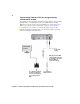
Connecting Convert DVI to your computer’s
primary DVI output
If your display card has one DVI output, or if it has two DVI outputs, but you
don’t have two DVI monitors, you can connect Convert DVI to your primary DVI
output (where you would normally connect your main monitor). Since your
primary output is already enabled in your Windows display settings by default,
you do not need to enable any other DVI outputs. When you connect Convert
DVI to your primary output, you must connect your DVI monitor to Convert
DVI’s DVI OUT to see your main desktop. When Convert DVI is properly
connected, and Windows has started, the red (Convert DVI Plus) or blue (Convert
DVI) LED located at the front of the Convert DVI box lights up and is constant.
0 Connect the USB B connector on the Convert DVI end of the cable to the
USB B port on your Convert DVI.
1 Connect the USB A connector on the computer end of the cable to the USB
A port on your computer (a High-Speed USB 2.0 connection is required).
2 Connect the external power supply to the DC power jack on the Convert
DVI, and to an AC outlet. If your Convert DVI comes with an external power
supply cable with international adapter plugs for use in different regions, see
“Convert DVI power supply and adapter plugs” on page 13.
¡ Important You must install the Convert DVI software before proceeding
(see “Installing your Matrox software” on page 20). Because you will be
connecting Convert DVI to your primary output, you won’t be able to see
your desktop unless the Convert DVI software is installed. After you have
successfully installed ConvertUtils, proceed to step 4.
3 Connect the DVI connector on the Convert DVI end of the cable to the DVI
IN connector on the Convert DVI. Tighten the thumb screws to ensure a
stable connection.
4 Connect the DVI connector on the computer end of the cable to the primary
DVI connector on your computer. Tighten the thumb screws to ensure a
stable connection.
¦NoteIf your computer has an HDMI or DisplayPort output, you can use a
third-party HDMI to DVI or DisplayPort to DVI adapter.
5 Insert the male stereo audio plug on the computer end of the Convert DVI
cable into the LINE OUT jack on your sound card or laptop.