
User guide





7
Connecting Convert DVI
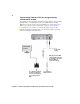
Convert DVI to your display card’s second output). Because Convert DVI doesn’t
have a screen, you can connect a DVI monitor to the DVI OUT on your Convert
DVI in order to preview what will be output through Convert DVI’s video
outputs. Whatever is displayed on the monitor connected to Convert DVI’s DVI
OUT (Convert DVI desktop) is output as high-quality video through the Convert
DVI video outputs. If you’ve defined a region of interest, however, only your
selected area of the Convert DVI desktop will be output.
You can connect Convert DVI to any of your display card’s DVI outputs.
However, if you have a display card with multiple outputs, and you connect
Convert DVI to a DVI output other than your primary output (where you would
normally connect your main monitor), you must make sure to enable the output
by extending or duplicating (cloning) your displays. For more information, see
“Configuring your display settings for use with Convert DVI” on page 21.
Matrox Convert DVI in stand-alone mode
Once you’ve configured Matrox Convert DVI, you can program Convert DVI for
stand-alone mode using your last-applied configuration settings. When using
Convert DVI in stand-alone mode, you can disconnect the USB cable from the
host computer and use Convert DVI with any device that has a DVI-D output in a
supported desktop resolution. For example, you can connect Convert DVI to the
DVI output from a camera or medical device, or the DVI output from a different
computer from the host computer that you used to configure Convert DVI.
When using Convert DVI in stand-alone mode, the DVI input to Convert DVI is
converted to high-quality video and output through Convert DVI’s SDI and
analog outputs according to the programmed configuration settings. In order to
preview the Convert DVI desktop, you can connect a DVI monitor to the DVI
OUT on Convert DVI.
For detailed instructions for programming and using your Convert DVI in
stand-alone mode, see “Stand-alone mode” on page 46.
Using DVI to HDMI and DVI to DisplayPort
adapters
If the device that you want to connect to Convert DVI’s DVI input or output does
not have a DVI connector, you can use an HDMI to DVI adapter, or a DisplayPort
to DVI adapter to connect your device to Convert DVI (VGA to DVI adapters are
not supported).
Connecting Convert DVI
Matrox Convert DVI includes a cable to connect the Convert DVI box to a
computer or any DVI device you want to use as a DVI source. The cable has four
connectors on the computer end, and two connectors on the Convert DVI end.