
User guide




27
Using the Matrox Convert DVI Control Panel
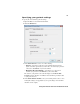
Specifying your genlock settings
To specify the Convert DVI’s genlock settings:
1 Open the Matrox Convert DVI Control Panel.
2 Click the Genlock tab.
3 Under Genlock Source, select one of the following:
$ Internal Select this to genlock to Convert DVI’s internal reference
signal. Select this option only if you don’t have an external sync generator
connected to the REF IN on your Convert DVI.
$ Black Burst Broadcast Quality Select this if you connected an
external sync generator to the REF IN on your Convert DVI.
The status of your genlock source will be displayed as
Locked or Not
Locked
to indicate whether or not Matrox Convert DVI is presently locked
to your genlock source.
4 Under Genlock Video Format, select your external genlock source’s video
format (this setting is not applicable if you’re genlocking to Convert DVI’s
internal reference signal).