
User guide




26
Chapter 4, Configuring Matrox Convert DVI
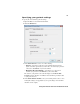
$ Select Underscan mode to output the full video frame, which includes
the edges of your video that may be visible only on production monitors.
Clearing this option displays only the safe area of a video frame that is
visible on all standard televisions and monitors.
5 If you are downscaling 16:9 material to 4:3, from the 16:9 to 4:3
Conversion
list, select one of the following options to indicate how you
want your video to be output:
$ Center cut Outputs the widescreen picture by evenly cropping the left
and right edges of the picture for display on a standard 4:3 television
screen.
$ Letterbox Outputs the widescreen picture in letterbox mode by adding
black bars at the top and bottom of the picture for display on a standard
4:3 television screen.
$ Anamorphic Outputs the widescreen picture as horizontally
compressed 4:3 video, which retains the picture’s full vertical resolution
for display on a widescreen television. To display the video with the
correct proportions on an NTSC or PAL monitor, select the 16:9 display
setting on the monitor.
6 If you are outputting material that has a non-standard aspect ratio, from the
Custom Scaling list, select one of the following options to indicate how
you want your video to be output (picture can be downscaled only):
$ Scale to fit Scales the picture to fit the entire screen.
$ Maintain aspect ratio Displays the picture at its original aspect ratio,
and centers the picture on the screen.
7 From the Analog NTSC Setup list, select the setup level you want for your
NTSC analog video outputs:
$ 7.5 IRE Applies the standard NTSC setup level of 7.5 IRE.
$ 0 IRE Applies a setup level of 0 IRE. You should select this option only
when working with a commercial DV-1394 device that uses the Japanese
analog NTSC setup of 0 IRE. For example, if the video appears too bright
when you play back DV clips on your NTSC monitor, you can change the
setup to 0 IRE to output your DV clips at the correct brightness.
8 Under Audio Output, select Embed audio in SDI output if you want your
computer’s audio to be embedded in Convert DVI’s SDI output signal.
9 Click Apply for your settings to take effect.