
User guide




24
Chapter 4, Configuring Matrox Convert DVI
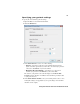
Using the Matrox Convert DVI Control Panel
The Matrox Convert DVI Control Panel has several pages that you can use to
specify various settings to configure your Matrox Convert DVI, such as your
video output format, genlock, and region of interest settings.
Remarks
• In order to configure Convert DVI, it must be connected to your computer
via the USB connectors as explained in “Connecting Convert DVI” on
page 8.
• Before configuring Convert DVI as explained in this chapter, you should
make sure that you have specified your desired display settings for the
Convert DVI desktop (see “Configuring your display settings for use with
Convert DVI” on page 17). If you change your Convert DVI desktop’s
display settings after configuring Convert DVI, the video output may be
distorted. If this happens, you must re-configure and re-apply your Convert
DVI settings.
°To open the Convert DVI Control Panel, do any of the following:
• Double-click the icon on the Windows taskbar.
• Right-click the icon and then choose
Open Matrox Convert DVI
Control Panel
.
• Choose
Start > All Programs > Matrox ConvertUtils > Matrox
Convert DVI Control Panel.