Model RC2001 User Guide Remote Controller RC2001_E_cover.indd 3 07.10.
NOTE: This equipment has been tested and found to comply with the limits for a Class B digital device, pursuant to Part 15 of the FCC Rules. These limits are designed to provide reasonable protection against harmful interference in a residential installation. This equipment generates, uses and can radiate radio frequency energy and, if not installed and used in accordance with the instructions, may cause harmful interference to radio communications.
TABLE OF CONTENTS BEFORE USE.......................................... 2 LOADING BATTERIES...............................................2 USING THE REMOTE CONTROLLER WITH INFRARED RAYS .......................................................3 ENGLISH Thank you for purchasing the Marantz RC2001 remote controller. This remarkable component has been engineered to provide you with many years of home theater enjoyment. Please take a few minutes to read this manual thoroughly before you operate the RC2001.
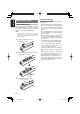
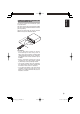
ENGLISH BEFORE USE LOADING BATTERIES Before using the remote controller for the first time, load the batteries in the remote controller. The batteries provided are used to verify the operations of the remote controller only. Note: The settings remain saved in the remote controller even if the power completely runs out. However, the time setting will be lost, and so please set the time setting again. 1. Remove the battery case cover. Battery case cover 2.
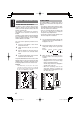
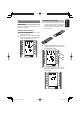
ENGLISH USING THE REMOTE CONTROLLER WITH INFRARED RAYS The remote controller uses infrared (IR) signals to operate devices. This means that you have to point the IR sending eye of the remote controller towards the devices you are operating. Operate the device with the remote controller within the range of the illustration below. ) 5m t( .4 f 6 x. 1 pro AV INPUT SELEC SURRO UND RECEIV TOR ER SR8001 DISP STANDBY SLEEP MULTI POWER AUTO AUTO SURR ON/OF TUNED DIRECT F ST SPKR DISC AB 6.
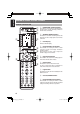
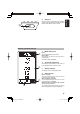
ENGLISH NAMES AND FUNCTIONS REMOTE CONTROLLER q w e r r q POWER ON and OFF buttons These buttons are used when controlling devices that have been set with separately powered on and off remote commands. w SOURCE ON/OFF button This button is used when controlling devices that have been set with a single power on/off remote command. e LCD Display Remote controller display r t y o u i t Page Scroll buttons These buttons are used when scrolling pages in Home mode and the device modes.
USB port This port is used to connect the remote controller and a PC with the supplied USB cable to enable editing with the Wizz.it 3 editor software. !0 ENGLISH !0 REMOTE CONTROLLER LCD A A Mode display area Home: This is displayed during Home mode. Device Name: This displays the device mode name that is currently active. This area is always highlighted. B Command display area This displays the information that has been set for the display items in the device modes.
ENGLISH BASIC OPERATION RC2001 BUTTON SETTINGS The Wizz.it 3 editor software can be used to make the settings for the IR Command, LINK, JUMP, One Touch Operation (Macro) and other functions in the RC2001. This enables a customized user interface, optimized for the customer s environment, to be built. The Wizz.it 3 editor software can be downloaded from www.marantz.com. For more information about the setting procedures, see the PC Editor Software Wizz.it 3 User Guide.
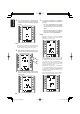
MAIN MENU 1. LEARNING FUNCTION 1. Place the remote controller so that its infrared signal transmitter is facing the infrared signal receiver on the Marantz remote controller at a distance of about 2 inches (0.05 m). 2. Display the MAIN MENU on the LCD of the RC2001, and then press the button next to the LEARNING indicator. 3. The screen appears as shown below. Either press the ENTER button or wait for three seconds. The various settings for the remote device are made in the main menu.
ENGLISH 4. This screen changes to HOME mode. Press the button next to the displayed device name whose commands you want to learn. 7. The remote controller has completed learning when LEARN OK is displayed on the LCD. • Pressing the ENTER button enables you to continue learning commands for another button in the same device mode. • When the learning mode is completed, press the Home button three times to return the LCD to the MAIN MENU.
The timer function of the RC2001 can be used to send a preset remote controller command at a programmed time. The Wizz.it 3 editor can be used to operate multiple devices. One Touch Operation (Macro) can also use the timer function for transmission. OPERATION SETTINGS 1. Press the button next to the TIMER SET indicator in the LCD in the TIMER menu screen to display the timer programming setting screen. 2. Use the numeric buttons (0 to 9) and cursor buttons (t and u) to set the time for the timer.
ENGLISH 3. Home mode is shown in the LCD. Select the commands and devices for the commands that will be sent by timer programming. • If a command assigned to the HARD button is to be sent by timer programming, press the HARD button when selecting the command to make the setting. 4. Press a button next to the EVERYDAY or ONE TIME indicators on the LCD to set timer operation to either everyday or onetime only operation.
1. 2. Press the button next to the ON/OFF indicator in the TIMER menu screen on the LCD to display the timer operation ON/OFF setting screen. Press the button next to the TIMER ON (Enable) or TIMER OFF (Disable) indicators on the LCD to either enable or disable timer operation. 3. Either press the ENTER button or wait three seconds so that COMPLETED is displayed on the LCD and the operation settings are automatically completed.
ENGLISH 3. SYS.SETUP 2. Use the numeric buttons (0 to 9) and cursor buttons (t and u) to set the current time. After setting the correct time, press the ENTER button. 3. The message COMPLETED is displayed in the LCD to indicate that the clock setting is completed. Display the MAIN MENU on the LCD of the RC2001, then press the button next to the SYS. SETUP indicator. The items below can be set in the SYS.SETUP screen.
Press the LIGHT button on the RC2001 to turn on the backlight, then set the time until the backlight turns off. 1. 3. The message COMPLETED is displayed on the LCD to indicate that the illumination time setting is completed. ENGLISH BACK LIGHT (BACKLIGHT ILLUMINATION TIME SETTING) Press the button next to the BACKLIGHT indicator in the SYS.SETUP menu screen in the LCD to display the backlight illumination time setting screen.
ENGLISH LCD (LCD SETTING) Press the button next to the LCD indicator in the SYS.SETUP menu screen in the LCD. The LCD setting menu is displayed. LCD TIMER (LCD timer setting) This sets the time that the LCD remains on, after a button is pressed on the RC2001. When there are no operations and the LCD is turned off, this setting enables power consumption to be reduced and the life of the batteries to be extended. The default setting is 10 seconds. 1.
BEEP (BEEP SOUND SETTING) This sets the built-in beep sound in the RC2001. 1. Press the button next to the BEEP indicator in the SYS.SETUP menu screen in the LCD to display the beep setting screen. 2. Press the button next to the ENABLE or DISABLE indicators on the LCD to either enable or disable the beep sound. 3. The message COMPLETED is displayed on the LCD to indicate that the setting is completed.
ENGLISH MEM CLEAR (INITIALIZATION SETTING) This returns the settings made in the RC2001 to their initial settings. 1. Press the button next to the MEM CLEAR indicator in the SYS.SETUP menu screen in the LCD to display the initialization setting screen. 2. Press the button next to the NO (Disable) or YES (Enable) indicators on the LCD to either enable or disable initialization. Note: The LEARNING and CLOCK settings are not initialized.
This displays the settings made in the MAIN MENU and the status of the remote device. CHECKING THE STATUS 1. 2. Display the MAIN MENU on the LCD of the RC2001, then press the button next to the STATUS indicator. Pressing the ENTER button cycles through the statuses of each of the items below. • Remaining learning memory 5. RESET If the RC2001 is not operating properly, use the procedure below to perform a reset (restart). Performing a reset does not erase the settings in the RC2001. 1.
ENGLISH SPECIFICATIONS RC2001 LCD Resolution .............................................“11x81pixel x6 line ................................................9x81pixel x1line” Backlight ............................................... EL backlight Transmission ........................................................IR Learning .......................... Capability: MAX 1000code Operating/ learning IR frequency range .....................................................Up to 455kHz Interface .. USB 2.
ENGLISH OTHERS The section describes the care and maintenance tasks that must be performed to optimize the operation of your Marantz component. CLEANING OF EQUIPMENT EXTERNAL SURFACES The exterior finish of your unit will last indefinitely with proper care and cleaning, Never use scouring pads, steel wool, scourging powders or harsh chemical agents (e.g., lye solution), alcohol, thinner, benzine, insecticide or other volatile substances as these will mar the finish of the equipment.
www.marantz.com You can find your nearest authorized distributor or dealer on our website. is a registered trademark. Printed in China RC2001_E_cover.indd 2 10/ 2007 00M42CW851250 mzh-d 07.10.