
Specifications




236
Please note that the Track Mode will be automatically
set to Off when you start logging a new feature in the
open GIS job (using the Mobile Mapping application).
This is to avoid confusion on the Map screen between
features and track points. The Track Mode will be auto
-
matically restored with its initial settings when you
close the GIS job.
- Primary Usage: ProMark3 can be set to either Land or
Marine usage. When in Land (default), the map dis-
plays land areas in white and water areas in blue. For
marine applications it may be desirable to reverse the
display, showing water as white and land as blue. This
will make reading some of the data information on the
water easier.
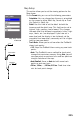
From the Display tab, you can customize the Map screen
by specifying the items that ProMark3 should display on
the map:
- Show Map Info: Use this option to show or hide the two
data fields displayed at the bottom of the Map screen.
To customize these fields, see Customize on page 244.
- Waypoints (default: checked)
- Track Lines (lines connecting track points if Track Mode
different from
Off; see page 235)
- Pos-Dest Line (line connecting current position to desti-
nation)
- Depart-Dest Line (line connecting initial position to des-
tination)
Check the items you want to show and clear those you
want to hide. You can also check or clear all these items in
a single operation by respectively selecting Mark All or Clear
All just above these items.
Press ESC or NAV to quit the Map Setup screen.
Map Setup screen,
Display tab