
Specifications




215
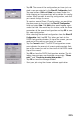
- Tap OK. The name of the configuration you have just cre-
ated is now pre-selected in the Direct IP Configuration field.
Two new buttons (Edit and Delete) are shown under this
field allowing you to respectively edit or delete this config
-
uration. When you edit an existing configuration, note that
you cannot change its name.
To create a second Direct IP configuration, you would tap
the down arrow to the right of the Direct IP Configuration
field and select New. The Add button would appear again
under the field. You would tap this button, enter the three
parameters of the second configuration and tap OK to save
this new configuration.
- After selecting the desired configuration from the Direct IP
Configuration field, tap OK. This takes you back to the
DGPS Configuration window. On top of the screen, you can
read part of the settings you have just made.
- Tap the Connect button. The DGPS Configuration screen
now indicates the amount of incoming data packets (bot
-
tom of the screen) as well as the status of the DGPS mode
(top of the screen).
- Tap OK to close the DGPS Configuration window. The fol-
lowing two messages are displayed successively: “Please
wait...” and “Processing incoming data packets...”.
- Tap OK to close the message window.
- Start your job using the chosen software application.