
Specifications





163
3. Raw data files (R*.*) are split into different files when
downloaded. The files are named as follows:
X<Downloaded_Filename> where X is:
- “E” for Ephemeris data files
- “B” for Position Data files
- “D” for GPS Raw Data files
- “W” for SBAS data files.
4. Unlike raw data files, vector files (O*.*), resulting from a
real-time TRTK survey, are kept unchanged when down
-
loaded.
5. If you use a card reader, the warning message “There is no
measurements and navigation data file in this session.”
will normally pop up every time you download a vector file
(O*.*).
Using the USB Port to Download Data
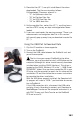
1. Clip the I/O module as shown opposite.
2. Turn on the ProMark3.
3. Connect the USB cable between the ProMark3 unit and
your office computer.
The first time you connect ProMark3 to the office
computer, you may be asked to install a USB driver on the
computer (although this driver should normally have been
installed when installing GNSS Solutions). This driver is
located on the GNSS Solutions CD in the “.../USB Driver/
PROMARK/” folder. Once you have inserted the CD in your
CD drive, ask the computer to search for this driver on the
installation CD and then follow the on-screen instructions
to complete the driver installation.
With the USB driver properly installed, the Download util-
ity program will make a “USB..” port available for connec-
tion to ProMark3.
If the USB connection fails, disconnect the USB cable
and plug it back. According to context, quit Download or
MobileMapper Transfer on the computer and restart it, or
with FAST Survey, quit Data Transfer on the ProMark3
RTK and re-start it.