
User guide


■
Formatting the HDD
For brand new hard drives, a partition has to be created first and it has to be formatted. Be
aware that formatting the drive will erase all existing data on it! Connect the drive via USB or
FireWire connection to your computer and turn it on.
Formatting on Windows
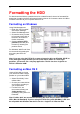
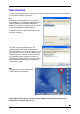
Using Disk Management:
• Right click “My Computer”
and choose “Manage”
• Select “Disk Management”
• Choose the drive you want
to format and right click on
the disk or drive field for
further commands
• Create a primary NTFS
partition (basic disk) and
format it by following the
partition wizard
For Win2000, WinXP and Vista,
we recommend formatting the
drive using the NTFS file
system.
Note: If you are using the FAT32 file system to format the drive on Win2000, WinXP or
Vista, the biggest single partition you can create will be 32GB. To create larger
partitions, you need to use a 3rd party application. The file size for a single file on
FAT32 is limited to 4GB!
Formatting on Mac OS X
Use the Disk Utility to format
your drive and create a single
partition on your external disk.
• Select “Disk Utility” in the
utilities folder
• Choose your external drive
and format it according to
your requirements.
• For Mac OS X, we
recommend creating one
single partition and
formatting it using “Mac OS
Extended”
Note: For Mac OS X, we recommend formatting the drive using its native file system
HFS+ (Mac OS Extended). If you are using the FAT32 file system (MS-DOS), it will also
be compatible with Windows but the file size for a single file is limited to 4GB!
■
4