
User guide





■
Video Settings
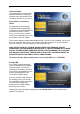
These settings configure the provided video output format:
• NTSC Composite/S-Video
• PAL Composite/S-Video
• NTSC Component
• PAL Component
• NTSC SCART
• PAL SCART
• High Definition output at 480p
• High Definition output at 720p
• High Definition output at 1080i
• VGA at 1024x768
Use the ▲▼ navigation buttons to select your Video setting. Press the PLAY/ENTER button
to activate it. Press the HOME button on your remote control to save the setting. Once
activated, the video out will switch to the selected format. Please note that you should have
already connected the correct cable before configuring the video settings; otherwise,
the TV screen may not display properly. For example, before enabling the “NTSC
SCART” option, you should have already connected the SCART cable.
In case of any setting errors (e.g. the simple Composite AV cable is connected and
you setup NTSC Component with no display on the TV screen), press the “TV out” key
on the remote control repeatedly until you see the correct display. You can then
choose the right video output via “Settings” and save it by pressing the HOME button.
TV Type
Select one of the listed types of TV display aspect ratios and press the HOME button on your
remote control to save the setting.
16:9 Wide Screen 4:3 Letter Box 4:3 Pan Scan
Screen Saver
Select the time interval to enable the screen saver when your TVisto is idle. There are three
(3) predefined time intervals of 5, 10, and 30 minutes, and one to disable the screen saver.
Use the ▲▼ navigation buttons to select your screen saver. Press the HOME button on your
remote control to save the setting.
NOTE: The unit automatically goes into stand-by mode when idle for more than 30
minutes.
■
18