
User guide




■
Pictures
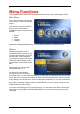
Selecting the Pictures menu will
bring you to the Pictures folder. On
the right side you will see the
directory list of the images that are
stored in your Pictures folder on the
device’s hard disk.
Each directory is named under
left/right brackets: “[“, “]”.
You can make any directory you
want with your desired name and
store any pictures you want in it.
Please note that every directory can
contain one or more sub-directories, depending on your own preferences (use your computer
to create and change the sub-directories!).
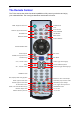
By using the navigation buttons and the PLAY/ENTER keys on your remote control, you can
select the photos that you want to display. Press the THUMBNAILS button to turn on the
image preview on the left corner of your screen (depending on the file size, the preview will
slow down the file access).
During playback, you can use the ZOOM, PAN and ROTATE function.
Picture Playlist
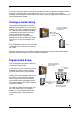
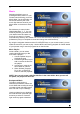
Inside a folder, you can select
certain individual images you like
and create a playlist.
1. Use the up/down keys to
highlight the image
2. Press the right arrow key to
add or remove the file from
the playlist
3. Add as many images in the
same folder as you like
4. When finished, press the
PLAY ALL or SHUFFLE
button to start the playback
NOTE: You can only create a playlist with files in the same folder. Once you turn off
the power, the playlist will be reset.
If you like to listen to some music during the slideshow presentation, go to the Music menu
and select a folder that contains the songs you would like to use as background music. See
previous page for more details.
■
16