
User guide




■
Unique Control Keys
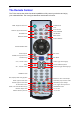
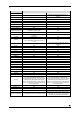
The TVisto’s Remote Control has a full set of buttons in order to provide the user with
complete control of the device. The following paragraphs describe the functions of some
important buttons; while in the previous table, there is a list of all the keys and their functions.
This key toggles the video out format. You can switch between the individual video outputs
pressing this button. The video output selected at any time will be shown on the screen. If
you cannot see the correct image on the TV or VGA screen, press this button until the image
appears. The video indication banner appears for a few seconds each time you press the TV
OUT button and also each time you switch on the TVisto.
Toggling TV OUT does not save the video settings. To do so, select the “Video
Settings” from the Settings menu.
This key allows you to position the external subtitles of XviD movies. When it is pressed, a
dual set of white template lines will appear for you to position using the c d keys. Press the
button again when done positioning.
Use the same button to also adjust the font size for the external subtitles. After pressing this
button, use the efkeys to increase or decrease the size. Press the button again when done
resizing.
Pressing this key, turns the image preview of your photos ON or OFF.
Pressing this key will shuffle all the content in the present folder randomly and start playing
back all files inside the folder continuously.
INFO, 0, 1, 2, RETURN
To return to factory default settings, press the above keys successively.
0 INFO 0 and 1 INFO 1
Press the HOME button to go to the main screen and then press 0 INFO 0 to temporarily turn
off the on-screen display (OSD). To turn it back on, press the HOME button and then press 1
INFO 1. As an example, before a slideshow presentation, this function can be used to turn off
all on-screen messages. This setting will reset itself to “enabled” after the unit has been
rebooted.
■
13