
User guide




■
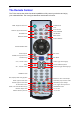
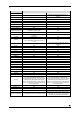
Buttons Functionality
Pictures Settings
HOME Displays the main menu
Displays the main menu and saves new
settings
POWER POWER On/Off POWER On/Off (not during Firmware update)
SHUFFLE Play all files randomly N/A
PLAY/ENTER SELECT/DISPLAY image SELECT
PLAY ALL PLAY ALL Files N/A
REVERSE PLAY N/A N/A
PAUSE/STEP N/A N/A
FAST FORWARD N/A N/A
PREVIOUS TRACK
Select PREVIOUS image and display
PREVIOUS page in file list
N/A
STOP PLAYBACK STOP DISPLAY N/A
NEXT TRACK
Select NEXT image and display NEXT page in
file list
N/A
ROTATE Rotate picture N/A
ZOOM
ZOOM IN (using ⇒ key), ZOOM OUT (using
⇐ key), press Enter and use arrow keys to
scroll
N/A
RETURN Return to the previous menu
Return to the previous menu and cancel
command
TITLE N/A N/A
MENU N/A N/A
MUTE N/A N/A
VOL + N/A N/A
VOL - N/A N/A
AUDIO N/A N/A
SUBTITLE N/A N/A
SUBTITLE cd N/A N/A
NUMERICAL PAD N/A N/A
INFO Displays file information (e.g. size, format, etc) N/A
SEARCH N/A N/A
MOVIES Jump to Movies folder N/A
MUSIC Jump to Music folder N/A
PICTURES Go to top folder N/A
SETTINGS Jump to Settings Leave Settings and go to Home
SLOW N/A N/A
ANGLE N/A N/A
THUMBNAILS Image preview ON/OFF N/A
TV OUT
VIDEO OUTPUT, toggle video out format. You
can switch between the individual video
outputs pressing this button. The video output
selected at any time will be shown on the
screen. If you cannot see the correct image on
the TV or VGA screen, press this button until
the image appears.
VIDEO OUTPUT, toggle video out format. You
can switch between the individual video
outputs pressing this button. The video output
selected at any time will be shown on the
screen. If you cannot see the correct image on
the TV or VGA screen, press this button until
the image appears.
REPEAT N/A N/A
REPEAT A-B N/A N/A
A1 N/A N/A
A2 N/A N/A
INFO 0 1 2 RETURN
By pressing the buttons consecutively: INFO 0
1 2 RETURN, the unit is set to factory default
By pressing the buttons consecutively: INFO 0
1 2 RETURN, the unit is set to factory default
(not when you select Firmware update)
■
12