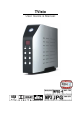
TVisto User Guide & Manual
■ October 2007 Congratulations on buying your TVisto Multimedia Center. The TVisto is a Digital Multimedia Player as well as Data Storage Solution that you can connect to any PC or Mac, either via USB 2.0 or FireWire 400 (plug & play) in order to copy your favourite content (music, movies, pictures, and/or data files). Once you have transferred your data to the TVisto, you can connect it to any TV set to enjoy your movies, music, and photos.
■ Table of Contents FEATURES OF THE TVISTO ..................................................................................................1 EXCLUSIVE DESIGN .................................................................................................................... 1 PC CONNECTION ........................................................................................................................ 2 TV CONNECTION .................................................................................
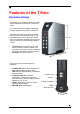
■ Features of the TVisto Exclusive Design Everything you love about multimedia, movies, music, and photos is brought to you with the TVisto. The TVisto features an elegant, fashionable, and high quality case to protect your device. The buttons on the front panel of the TVisto offer quick access to basic functions for the multimedia player, even without the remote control.
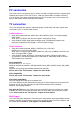
■ PC connection The TVisto can be connected to any PC or Mac via USB or FireWire interface, supporting the following file formats: FAT32, NTFS, HFS+. With high speed USB or FireWire connection, you can quickly move large multimedia files from your computer to the TVisto. Please note that you will always need an external power adaptor. TV connection The TVisto provides the optimum multimedia quality in both audio and video outputs when connected to your TV set and audio system.
■ Remote The TVisto is equipped with an elegant infrared remote control, providing standard DVD functionality buttons and more. Please refer to the chapter “TV Connection” for a detailed description of the remote control. Firmware update You will be able to upgrade your device with new features and capabilities by following the firmware 1 upgrade procedure: • • • • • • • Get the latest update from your vendor’s web site.
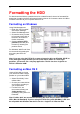
■ Formatting the HDD For brand new hard drives, a partition has to be created first and it has to be formatted. Be aware that formatting the drive will erase all existing data on it! Connect the drive via USB or FireWire connection to your computer and turn it on.
■ Creating the Directories For the TVisto to be able to find the files on the hard drive, four (4) folders with the exact names shown below must be created first! NONE of the prerequisite folders should ever be deleted or renamed, because your TVisto uses these exact names as a reference to locate the respective files. Inside these folders you can have any sub-directories that are convenient to you. Create the folders as shown below, now.
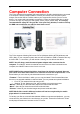
■ Computer Connection The TVisto operates as a standard USB mass storage or FireWire hard disk when connected to a computer. Use the included cables to connect your device to the computer system. Always connect the USB or FireWire cable to your computer first, before you turn on the device. Your system will automatically recognise the TVisto as external hard drive in which you then can copy any file(s) you want (music, movie, picture, and/or data).
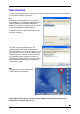
■ Safe Removal In order to safely remove the TVisto from your system, please follow the same procedures as for any external Plug & Play device. PC Double click on the taskbar icon to “Unplug or Eject hardware”. The adjacent dialogue box will appear, displaying the external Plug & Play devices. In the current example, you can see the TVisto as a USB Mass Storage Device. In order to remove it, click the device in the list and then click Stop. Click OK on the next dialogue box.
■ TV Connection The TVisto provides high quality video and audio output when connected to your TV set and audio system. The TV connection is straightforward. Just connect the TVisto to your TV set (NTSC or PAL) using the included AV cable, plug in the power supply and turn it on. When using the default AV Cable provided with the TVisto, you have Composite video signal, S-Video, and stereo (Left/Right) analogue audio out connected to your TV set.
■ The TVisto offers the option for two kinds of audio connection, analogue and digital. Use the analogue connection when connected directly to the TV, or if you don’t own a stereo amplifier. Use the digital connection when you want to listen to digital surround sound on your home entertainment system. Analogue Audio Setup The simplest configuration is when the analogue audio system on your TV set is used.
■ The Remote Control The TVisto remote has all the functional capabilities to fully control your device and enjoy your multimedia files. The next figure describes each button’s function.
■ Buttons HOME Functionality Movies Music Displays the main menu Displays the main menu POWER POWER On/Off POWER On/Off SHUFFLE Play all files randomly Play all files randomly PLAY/ENTER SELECT/PLAY movie SELECT/PLAY song PLAY ALL PLAY ALL Files PLAY ALL Files REVERSE PLAY REVERSE PLAY REVERSE 10 seconds of the song PAUSE/STEP PAUSE/STEP PAUSE FAST FORWARD FAST FORWARD FORWARD 10 seconds of the song PREVIOUS TRACK PREVIOUS TRACK (.
■ Buttons HOME Functionality Pictures Settings Displays the main menu Displays the main menu and saves new settings POWER POWER On/Off POWER On/Off (not during Firmware update) SHUFFLE Play all files randomly N/A PLAY/ENTER SELECT/DISPLAY image SELECT PLAY ALL PLAY ALL Files N/A REVERSE PLAY N/A N/A PAUSE/STEP N/A N/A FAST FORWARD N/A N/A PREVIOUS TRACK Select PREVIOUS image and display PREVIOUS page in file list N/A STOP PLAYBACK STOP DISPLAY N/A NEXT TRACK Select NEXT im
■ Unique Control Keys The TVisto’s Remote Control has a full set of buttons in order to provide the user with complete control of the device. The following paragraphs describe the functions of some important buttons; while in the previous table, there is a list of all the keys and their functions. This key toggles the video out format. You can switch between the individual video outputs pressing this button. The video output selected at any time will be shown on the screen.
■ Menu Functions This paragraph presents the various menus and their functions when operating the TVisto. Main Menu This is the main page that appears when you turn on the TVisto media player. You have four (4) main selections that you can access with the navigation buttons and by pressing ENTER: • • • • Movies Music Pictures Settings Please see following paragraphs for a more detailed description of individual menus.
■ Music Selecting the Music menu or pressing the Music button on your remote control will bring you to the Music folder. On the right side you will see the directory list of the music clips that are stored in your Music folder on the device’s hard disk. Each directory is named under left/right brackets: “[“, “]”. You can make any directory you want with your desired name and store any music file you want in it.
■ Pictures Selecting the Pictures menu will bring you to the Pictures folder. On the right side you will see the directory list of the images that are stored in your Pictures folder on the device’s hard disk. Each directory is named under left/right brackets: “[“, “]”. You can make any directory you want with your desired name and store any pictures you want in it.
■ Settings The TVisto Settings menu is extremely important in order to correctly configure your device and benefit from its advanced features. In the following paragraphs, there are detailed descriptions of the various settings and parameters. Languages The TVisto provides the unique feature to support a multilingual audience. With sophisticated Unicode character handling, it supports most of the major languages used in the menu selection and the subtitle feature of movies.
■ Video Settings These settings configure the provided video output format: • • • • • • NTSC Composite/S-Video PAL Composite/S-Video NTSC Component PAL Component NTSC SCART PAL SCART • High Definition output at 480p • High Definition output at 720p • High Definition output at 1080i • VGA at 1024x768 Use the ▲▼ navigation buttons to select your Video setting. Press the PLAY/ENTER button to activate it. Press the HOME button on your remote control to save the setting.
■ Firmware Update This setting performs the firmware update procedure by reading the firmware binary files located in the “Firmware” directory of you device. Never delete or rename this folder! Provided that you have already copied the latest firmware files to this directory, press the ENTER key to start the process. From the menu, you can verify the revision number of the installed version and the revision of the new release. The firmware update procedure takes approximately 1 minute.
■ Background Images The background images seen on your TV can be customised! To do so, connect your TVisto to the computer and create a new folder inside the Firmware directory called “img”. Prepare your new background images and save them inside the “img” folder. The files have to be saved as JPG and the dimension should be 720x480 with a DPI of 72. Name them exactly as followed: Main.jpg, Movies.jpg, Music.jpg, Photos.jpg and Settings.jpg.
■ File Formats Following is an introduction to some of the file formats, which are supported by the TVisto media player. .ISO Only with the TVisto can you create your own Virtual DVD Library by storing your private collection of DVDs (using the .ISO format) and watch them as if they were running from the original DVDs. Once the movies are stored in the TVisto as .
■ DivX® DivX® is a new format for digital video. The DivX® codec is based on the MPEG-4 compression standard, which is so advanced that it can reduce an MPEG-2 video (the same format used for DVD) to ten percent of its original size. The TVisto is fully compatible with DivX® format and can play any movie encoded with this compression format no matter which version of the encoder used: 3.11, 4.x, 5.x. GMC and Qpel encoding is not supported on the TVisto.
■ Specifications Supported Audio Files Formats WMA, WAV, MP3, AAC, AC3, OGG Vorbis Supported Audio Outputs Formats Dual stereo analogue audio, SPDIF digital audio (supports compressed Dolby Digital 5.1 and DTS pass through). Supported Video Files Formats MPEG-1, MPEG-2 (AVI, VOB, ISO), MPEG-4 (AVI, DivX, DivX VOD, XviD). Supported Video Output Formats NTSC/PAL composite and S-video, analogue YPbPr video (progressive or interlaced) scalable up to 1920x1080i or 1280x720p. RGB via SCART.
■ Package Contents Standard Package 1) Your TVisto multimedia centre. (no hard drive included!) 2) Power adapter 110/240V auto switching, +5V/2A, +12V/2A 3) Infrared remote control 4) Composite AV cable (composite RCA, S-Video mini DIN, left audio RCA, right audio RCA) 5) SCART to composite RCA, L/R Audio RCA adapter (Europe only) 6) Coaxial audio cable (RCA to mini jack) 7) USB 2.
■ Safety Information Before starting your TVisto, please carefully read the following paragraphs relating to the safety issues on your device in order to extend its life. Power on/off precautions The TVisto Remote Control provides the POWER ON/OFF button that controls the power status of your device when connected to the TV. It is highly recommended to switch the unit off when not in use. In any case, the TVisto will switch to stand-by mode if idle for more than 30 minutes.
■ FAQ Q: No Files Found! A: This message may occur for several reasons.
■ Technical Questions For RMA and other questions, please contact your vendor or check out their online support area! Make sure to include as much detail as possible and explain the problem to your vendor. Before you contact your vendor, read through the FAQ on the previous page and make sure you are using the latest firmware. About this Manual This manual was written using the model TVisto and the firmware version v2.0.6.62.