
Specifications


Appendix A: Windows System Optimizations 49
appendix a
Windows System Optimizations
When installing Pro Tools on Windows XP,
there are many system variables that affect per-
formance. If you have followed all the Windows
configuration instructions in Chapter 2, “Win-
dows Configuration” and are still experiencing
problems, try the following troubleshooting
suggestions.
Troubleshooting
Blue Screen at Startup
If, after installing Pro Tools and QuickTime,
your computer crashes with a blue screen, do
the following:
•Use Add/Remove Programs to uninstall
Pro Tools.
• Use Add/Remove Programs to uninstall
QuickTime.
• Repeat the installation instructions in “In-
stalling Pro Tools M-Powered Software” on
page 10.
Advanced Settings
The following system optimizations may help
Pro Tools perform better on some systems. It is
recommended that you only try these optimiza-
tions if necessary, as they may disable or ad-
versely affect the functionality of other pro-
grams on your system.
Disabling Network Cards
If applicable, disable any networking cards
(other than a 1394 “FireWire” card that you
might use to connect an external drive to your
system).
To disable a network card:
1 Right-click My Computer and choose Man-
age.
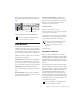
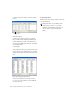
2 Under System Tools, select Device Manager.
3 In the Device Manager window, double-click
Network adapters, then double-click the Net-
work Adapter card you want to disable.
4 Under the General tab, choose “Do not use
this device (disable)” from the Device Usage
pop-up menu, and click OK.
5 Close the Computer Management window.
Norton Ghost is highly recommended, as it
lets you save your system in a working state
and easily revert to that state should you ac-
cidentally disable anything that your com-
puter needs.
For more information on Ghost, visit the Sy-
mantec Web site (www.symantec.com)