
Specifications

Chapter 4: Working with Pro Tools M-Powered 37
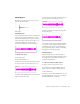
7 Drag the audio file from the Workspace
Browser to the audio track you created in your
session.
Basic Recording
This section describes how to record audio and
MIDI into Pro Tools.
Preparing for Recording
To prepare an audio track for recording:
1 Verify the connections to your instruments.
2 Create a new track to record on by choosing
File > New Track. Specify 1 Mono Audio Track
and click Create.
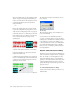
3 In the Mix window, click the Input Selector on
the new track.
4 From the pop-up menu, select the interface in-
put you want to record. For example, select
Mic/Line 1 if your audio source is plugged into
the first jack of an M-Audio interface.
5 Use the Gain controls on your M-Audio inter-
face (if any) to maximize the signal going into
Pro Tools while avoiding clipping.
Recording an Audio Track
To record an audio track:
1 Assign the input for a track and set its input
levels appropriately.
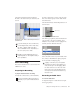
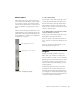
Dragging the audio file from the Workspace Browser to
an audio track
If you are running Pro Tools on Mac OS X,
you can import audio from a CD by using
the Movie > Import Audio From Other
Movie command. For more information, see
the Pro Tools Reference Guide.
DigiBase provides additional options for
importing audio. See the DigiBase Guide for
more information.
For more information about connecting in-
struments, refer to your M-Audio documen-
tation.
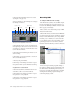
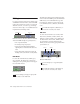
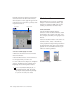
Choosing an input in the Mix window
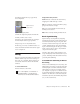
Routing an input to a mono track
Clipping occurs when you feed a signal to
an audio device that is louder than the cir-
cuitry can accept. To avoid clipping, adjust
the Gain control to a level where the Peak
LEDs on the front of an M-Audio interface
do not flash. You can also attenuate the sig-
nal at its source.
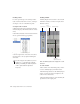
Input selector