
Specifications

Getting Started with Pro Tools M-Powered34
Memory Locations
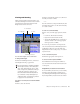
Memory Locations provide another way to nav-
igate within sessions. Memory Locations appear
as markers under the Timebase Rulers.
To define a memory location:
1 Do one of the following:
•Navigate to the location at which you want
to store a marker or memory location.
– or –
• Begin playback.
2 Create a memory location by doing one of the
following:
• Press Enter on the numeric keypad
– or –
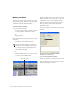
•Click the Marker Well (“+”) button, located
to the left of the Markers Ruler.
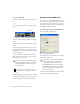
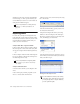
In the New Memory Location window, you can
define a marker, store a selection, or store any
combination of the other available settings.
These settings include track height, group en-
ables, pre- and post-roll values, and track
Show/Hide status.
3 Choose settings for the memory location and
click OK.
To go to a stored memory location:
1 Choose Windows > Show Memory Locations.
2 In the Memory Locations window, click the
name of the memory location.
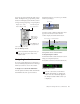
On some Windows laptops, you can press
Fn+Enter to create a memory location. This
is especially useful for laptops that do not
have a numeric keypad.
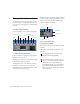
Song Start marker
Marker Well button
New Memory Location window