
Specifications

Chapter 4: Working with Pro Tools M-Powered 31
Tracks
Pro Tools lets you create audio and MIDI tracks
for audio and MIDI recording, submixing, rout-
ing, automating, and editing.
Pro Tools provides four types of tracks: audio
tracks, Auxiliary Inputs, Master Faders, and
MIDI tracks. Audio tracks, Auxiliary Inputs, and
Master Faders can be mono or stereo.
Audio Tracks Record and play back audio to and
from hard disk, monitor audio input when
record-enabled, and edit audio regions
Auxiliary Inputs Audio mixer channels, used for
input, routing, and submixing
Master Faders Provide master channel controls
and options for any output or bus path
MIDI Tracks Record, play back, and edit MIDI
data
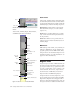
To create a new track:
1 Choose File > New Track.
2 Specify the number of tracks, track type, and
mono or stereo track format (for all track types
except MIDI).
3 To create multiple new track types in one step,
click the “+” button in the New Tracks dialog.
Specify the number of tracks, track type, and
track format for each additional row of new
tracks you want to create.
4 Click Create.
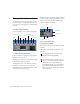
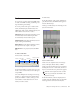
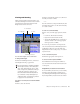
In the Mix window, audio tracks, Auxiliary In-
puts, Master Faders, and MIDI tracks appear as
vertical channel strips.
Track type is indicated by the Track Type icons
just below the faders.
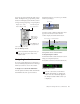
Track colors are assigned based on track type
(audio, Aux Input, Master Fader, or MIDI
tracks). You can customize the color of tracks by
clicking the color bar of each track, and choos-
ing its color from the color palette that appears.
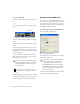
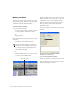
In the Edit window, tracks are displayed hori-
zontally along the Timeline. The area in which
audio appears for each track is the Playlist.
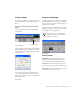
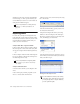
New Track dialog
Number of new tracks
Track Format
Track Type
Track Timebase
Add/Delete Track
Tracks in the Mix window
When the cursor is placed over the color bar
at the top of a track, the track name is dis-
played in a tool tip
Audio
Aux
Master
MIDI
Fader
Input
track
track