
Specifications


Chapter 4: Working with Pro Tools M-Powered 25
chapter 4
Working with Pro Tools M-Powered
This tutorial of Pro Tools M-Powered software
introduces its main windows and features, and
also includes a step-by-step overview of audio
recording (see “Basic Recording” on page 37).
All features described in this chapter are ex-
plained fully in the Pro Tools Reference Guide.
You can view an electronic PDF version of the
Reference Guide by choosing it from the
Pro Tools Help menu.
Session Basics
Pro Tools M-Powered projects are created and
saved as sessions. Sessions store all tracks, audio,
MIDI, and other session information. Audio and
fade files are stored in folders within the session
folder.
Starting a Session
To create a new session:
1 Launch Pro Tools M-Powered.
2 Choose File > New Session.
3 In the New Session dialog, set the sample rate,
bit depth, and other options for the new session.
4 Select where you want to save your session. If
you are using external hard drives with your
Pro Tools system, make sure you select the ap-
propriate drive in the New Session dialog.
5 Type a name for your session.
6 Click Save. The new session opens its Mix,
Edit, and Transport windows (see Figure 1 on
page 26).
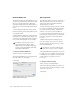
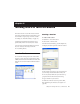
Session file, Audio Files and Fade Files folders
New Session dialog