
Specifications

Getting Started with Pro Tools M-Powered16
Defragmenting an Audio Drive
Periodically defragment audio drives to maintain
system performance.
To defragment an audio drive:
1 Right-click My Computer and choose Man-
age.
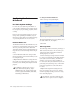
2 Under Storage, choose Disk Defragmenter.
3 In the Disk Defragmenter window, choose the
drive you want to defragment
4 Click the Defragment button and follow the
on-screen instructions.
5 When defragmenting is complete, close the
Computer Management Window.
Avoid Recording to System Drives
Although Pro Tools will let you record to your
system drive, this is generally not recom-
mended. Recording and playback on system
hard drives results in lower track counts and
fewer plug-ins. You should record to system
drives only when necessary (for example, if your
computer has just one hard drive).
Removing Pro Tools on
Windows XP
If you need to remove Pro Tools from your com-
puter use the Add or Remove Programs com-
mand.
To remove Pro Tools from your computer:
1 Choose Start > Control Panel.
2 Launch Add or Remove Programs.
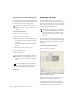
3 From the Currently installed programs list, se-
lect Digidesign Pro Tools M-Powered.
4 Click the Change/Remove button.
5 Follow the on-screen instructions to remove
Pro Tools.