
Specifications

Getting Started with Pro Tools M-Powered14
Sync Source (Pro Tools Clock Source)
If your M-Audio interface has a digital I/O (such
as a S/PDIF I/O), use the M-Audio Control Panel
to select the Sync Source for the system.
To select the Sync Source:
1 If Pro Tools is open, close it.
2 Choose Start > Control Panel.
3 Launch the M-Audio Control Panel as follows:
• For FireWire interfaces, launch M-Audio
FW Audio.
• For PCI interfaces, launch M-Audio Delta
Audio.
4 Launch the M-Audio Control panel.
5 Click the Hardware tab.
6 Select a Sync Source.
7 Click OK.
Configuring I/O Setup
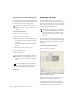
Using the I/O Setup dialog, you can label
Pro Tools input, output, insert, and bus signal
paths. The I/O Setup dialog provides a graphical
representation of the inputs, outputs, and signal
routing of the M-Audio interface.
Pro Tools M-Powered has default I/O Setup set-
tings that will get you started. Use the I/O Setup
dialog only if you want to rename the default
I/O paths.
To rename I/O paths in I/O Setup:
1 Choose Setups > I/O Setup.
2 Click the Input, Output, Insert, or Bus tab to
display the corresponding connections.
3 To change the name of a path or subpath,
double-click directly on the Path Name, type a
new name for the path, and press Return.
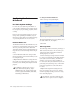
With Pro Tools M-Powered, Sync Source
cannot be set in the Pro Tools Session Setup
window.
Your digital input device must be connected
and turned on. If your input device is not
turned on, leave the Sync Source set to Inter-
nal.
For more information on selecting the Sync
Source for your M-Audio interface, refer to
your M-Audio interface documentation.
Pro Tools M-Powered bypasses the M-Audio
mixer that is displayed in the M-Audio Con-
trol Panel. The interface’s hardware inputs
and outputs show up directly in Pro Tools
I/O Setup.
I/O Setup dialog for Pro Tools M-Powered
(M-Audio FireWire 1814 shown)