
Owner's Manual

55
Viewing your camera remotely using Skype™
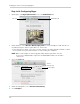
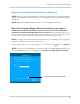
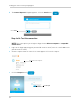
3 Check if you can see live video from your system. Video from your camera is shown next to the
Camera entry.
Check if you can see live video from your system
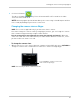
NOTE: If you can see an image from a webcam that is already connected to your computer,
select Wireless Monitoring System from the drop-down menu.
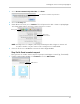
4 Configure the following:
• Under Who ca
n call you?, select Only my contacts. This will prevent the camera from accepting
calls from anyone who is not in the contact list for its account.
• Ensure that Answer incoming calls automatically and Turn on video automatically are both
in the Yes position.
5 Left-click outside the
settings panel to save your changes.
Step 3 of 4: Send a contact request
Next, you have to send a contact request from the camera's account to your personal account.
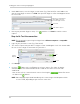
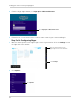
1 Right-click anywhere on
the Skype window. Two menus will appear on the top and bottom of
the screen.
2 Click the Add Contact butt
on ( ) on the bottom of the screen. A search bar appears.
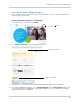
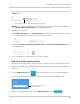
3 Search for the name of your personal Micr
osoft account (e.g., tom.smith@live.com).
Search for the name of your
personal account.
4 Double-click on your profile and click the Add to Contacts button ( ).