
Owner's Manual

41
Viewing your camera remotely using Skype™
Step 2 of 6: Connecting the video monitor to the PC
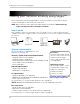
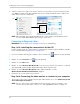
1 Turn on the camera first, then the video monitor. Make sure you can see a video image on
channel 1.
NOTE: Pair the camera that is most important for you to view remotely to Channel 1. For
ins
tructions on how to pair cameras, see “Pairing/adding cameras” on page 33.
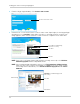
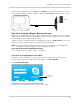
2 Connect the mini-USB cable (included) to your video
monitor and into the computer’s USB
port.
mini-USB cable
USB Port
The video monitor displays the following: "USB PC CAMERA MODE"
Step 3 of 6: Creating a Skype / Microsoft account
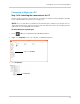
A Skype account allows you to connect to your camera through the Skype service. You can also
log in to Skype using a Microsoft e-mail address. Skype is a service that allows users to make
voice calls and video calls to anywhere in the world.
NOTE: The Skype illust
rations and instructions below serve as a guideline only. Skype may
change their website / product interface without prior notice.
If you do not have a Skype account
See “If you do not have a Skype account...” on page 51.
If you are using the Windows Store Skype app:
See “Remote access using the Windows Store Skype app” on page 53.
To create an account using Skype for desktop:
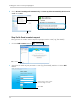
In order to connect to your video monitor using Skype, you will need two accounts—one for the
camera (e.g., Lorex Camera) and one for yourself (e.g.,Tom Smith). Follow the instructions
below.
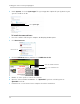
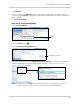
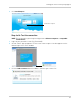
1 Launch Skype. If y
ou are connected to Skype, click Skype>Sign Out.