
Owner's Manual


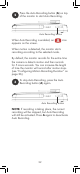


Viewing Mode To Enter Viewing Mode Auto Record Behavior
Full-screen (Single camera
selected)
Press
to open Full-
screen / switch camera
When motion is detected on selected camera, the camera is recorded in Full-
screen.
Sequence (Cameras
automatically switch every
6 seconds;
icon
on screen)
Press
once
When the camera that is currently on the screen detects motion, that camera is
recorded in Full-screen. Motion detection is disabled on channels that
are not currently on-screen.
Scan Mode (Display is
off when motion is not
detected; SCAN LED is on)
Press
When motion is detected on any connected camera, that camera will be opened
on the monitor and recorded in Full-screen. After recording is finished, the display
will turn off.
Quad Mode (4-way split-
screen shows multiple
cameras)
Press
twice
In Quad Mode, recording starts when motion is detected on any camera. If the
Recording Mode is set to Single Channel, it will record the triggered camera in
full-screen and then return to Quad Mode. If the Recording Mode is set to Quad
Channel, it will record the entire screen in Quad Mode.
To select the Recording Mode, see “Selecting Quad or Single-Channel Motion
Recording Mode” on page 28.
Auto Recording Modes
ENGLISH
23