
Owner's Manual




65
Setting up your DVR for Remote Connectivity
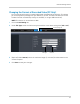
Step 3 of 4: Enable DDNS on the DVR
To enable DDNS in your DVR:
1 Right-click to
open the Menu Bar and click the Main Menu button ( ).
2 Click Netw
ork and select the DDNS tab.
3 In the DDNS drop-down menu, select Enabl
e.
Select Enable
Domain Name: Enter Domain name/URL Request
User Name: Enter DDNS User Name
Password: Enter DDNS Device password
tomsmith
tsmith01
******
Example of entering DDNS information in the
DDNS setup menu
Beside Server, select LOREXDDNS (default).
4 Under Domain Name, enter your Domain name/URL Request fr
om the confirmation email
that was sent after you created your DDNS account.
5 Under User Name, enter y
our DDNS User Name that was emailed to you after DDNS
registration.
6 Under Pa
ssword, enter your DDNS Device password that was emailed to you after DDNS
registration.
7 Cl
ick A
pply to save your settings.