
Owner's Manual




46
Using the Main Menu
your router as a static IP as well. Consult
your router’s user’s manual for details.
3 Click Appl
y to save your settings.
4 Right-click until you
exit all menus. You
will be prompted to restart.
Enabling Auto Port Forwarding
Auto Port Forwarding allows the DVR to
open required ports on your router. This
feature only works on certain router
models. If the Auto Port Forwarding
feature does not work on your router, it
is recommended to use the Auto Port
Forwarding Wizard (PC only), located on
the software CD. You may have to
manually open the port on your router.
To Enable Auto Port Forwarding:
1 Sel
ect the Ne
twork tab.
2 In the Auto
Port Forwarding drop-down
menu, select Enable or Disable.
3 Clic
k Appl
y to save your settings.
Changing the DVR’s Client and
HTTP Port
The DVR’s Default Client port is 9000.
The default HTTP port is 80. You must
port forward the Client Port and HTTP
port on your router to your DVR’s IP
address to enable remote access.
To change the Client port and HTTP
port
:
1 Select the Ne
twork tab.
2 In Client Port, enter the d
esired Client
Port (default: 9000).
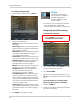
Client Port & HTTP Port fields
NOTE: 9000 is represented as "09000."
3 In HTTP Port, enter the desir
ed HTTP Port
(default: 80).
4 Click Appl
y
to save your settings.
5 Right-click to e
xit all menus. You will be
prompted to restart.
Adjusting Remote Connectivity
Streaming Rates
You can adjust the data streaming rate
(also called the SubStream) when you
connect to the system remotely. If you
want to conserve bandwidth, select a
lower frame rate and bitrate.
NOTE: Setting your
system to stream with a
lower frame and bitrate may cause
the video to appear choppy or slow.
To adjust the SubStream settings:
1 Click the SubStr
eam tab.