
Owner's Manual




45
Using the Main Menu
Using the Log Search
A log search allows you to search
system event logs.
To perform a Log search:
1 Click the Log ta
b.
2 Configure the following to perform a Log
search:
• Log Type: Sel
ect the log type you wish to
search under. Choose from Alarm (i.e.
motion events), Operation (i.e.
Configuration changes, Setup), or All.
• Start Time: En
ter the time you wish to
begin searching.
• End Time: Ent
er the time you wish to end
searching.
3 Click Sear
ch.
4 (Optional) Click
the Backup button to
backup system logs to a USB flash drive
(not included).
Network
The Network menu allows
you to configure the
system’s DDNS and
network settings.
Configuring Network Type: DHCP &
Static IP
The system has the ability to operate in
DHCP mode and Static IP mode.
After setting up your system, it is highly
recommended
to set
your system to use
a static IP address. This ensures that
the IP address will not change if the
power goes out or your router resets.
To configure DHCP and Static IP
settings:
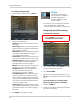
1 Select the Network tab
.
2 In the Ty
pe drop-down menu, select DHCP
or Static. If you select DHCP, the router
automatically assigns an IP to your DVR.
Select DHCP or Static
If you select Static, click the field beside IP
Addres
s, and enter in the IP address of
your choice.
• Enter your custom Subnet Mask,
Ga
te
way, DNS1 and DNS2 using the
mouse.
• You must assign the IP in your router that
you wish t
o make static. For example, if
you assign 192.168.2.89 as the static IP in
the DVR, you must assign 192.168.2.89 in