
Owner's Manual





42
Using the Main Menu
recommended to select D1 if you have
cameras that are not 960H-capable.
NOTE: If you change this setting, the DVR
will r
estart when you save changes.
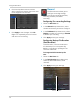
Under Mode, select D1 or 960H. Select D1 if you do
not have 960H cameras.
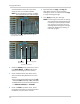
Frames per Second
Recording
Resolution
Recording quality
3 Under the Quality drop-down menu, select
from Good, Better, or Best to adjust the
quality of recordings on each channel.
4 Under
the Resolution drop-down menu,
sel
ect the Recording Resolution for each
channel:
• If D1 is selected, available options are CIF
(320
x240), HD1 (720x240), or D1 (720x480).
• If 960H mode is selected, available options
are 48
0x240, 960x240, or 960x480.
5 Under the FPS drop-do
wn menu, select
the number of frames per second you want
the DVR to record on each channel.
6 (Optional) Use the Copy and Copy
To
drop-down menus to copy recording
settings to one or all channels. Click Copy
to copy recording settings.
7 Click Apply t
o save your settings.
NOTE: Increasing the resolution or quality
settings will decr
ease the amount of
Frames per Second (FPS) the DVR
can record. If you receive an error
message when saving your changes,
reduce the Resolution, Quality, or
FPS and try again.