
Owner's Manual





39
Using the Main Menu
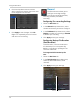
4 Click the Setup button next to Mask Area.
The Privacy Area setup screen opens.
Click and drag to move privacy zones
Click Inside the edge and drag to resize
• Click on a privacy area and drag to change
its location.
• Click on the edge of a privacy area and
drag
to resize a privacy area.
• Right-click when you are finished to exit.
5 (Optional) Use the
drop-downs next to
Copy to copy privacy areas to another
channel or all channels. Click the Copy
button to copy privacy areas.
6 Click A
pply to save your settings.
Creating a Custom Split-screen
Display
You can create a custom split-screen
display and re-arrange where channels
are placed.
TIP: You can use the steps below to
create a cus
tom split-screen display on
a secondary monitor connected to the
Video Out port. First, move the mouse
and system interface to the Video Out
monitor by pressing 0 three times on
the remote control. Complete the steps,
and then press 0 three times on the
remote control again to return the
mouse and system interface to the VGA
or HDMI monitor. Your custom display
will be saved on the secondary monitor.
To re-arrange the split-screen display:
1 Select the Output ta
b.
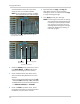
2 Under View Setup, select Enable. This lets
you select and arrange the channels you
want to show on the screen.
NOTE: Enabling Vie
w Setup disables your
ability to change channels the
normal way on the selected monitor.
You will need to disable View Setup
to return to normal operation.
Select Enable
Select display mode
Click Vout Setup
3 Under View Mode, select the desired
viewing mode: Single, Quad, Nine, or
Sixteen.
4 Click Vo
u
t Setup. A menu appears that
allows you to select the arrangement of
channels.